How to javascript in browser: a practical, in-browser guide
Learn how to javascript in browser with practical, browser-first techniques. This guide covers running code, DOM manipulation, events, async patterns, debugging, and safe practices for in-browser JavaScript development.


This guide shows you how to javascript in browser by running code in the console or within HTML, manipulating the DOM, handling events, and using modern module syntax. You’ll learn practical patterns for debugging, asynchronous tasks, and safe browser practices. According to JavaScripting, starting with the browser’s built-in tools will accelerate your learning and reduce boilerplate.
Why In-Browser JavaScript Matters
In-browser JavaScript is the lifeblood of modern web applications. It runs directly in the user's browser, enabling interactive features without needing a server round trip. For beginners and professionals alike, understanding how to javascript in browser means mastering the most accessible sandbox for experimentation and learning. This guide emphasizes practical, hands-on approaches you can apply immediately, from simple console experiments to integrating modules in an HTML page. According to JavaScripting, starting with clear goals and small, repeatable experiments helps you build confidence quickly. The browser offers powerful tools for inspecting, profiling, and debugging code, so you get rapid feedback as you iterate. As you progress, you’ll discover patterns that scale from tiny snippets to full-featured apps. This practical focus aligns with real-world workflows, where speed, clarity, and correctness matter most.
Understanding the Browser JavaScript Environment
Every browser provides a JavaScript runtime inside a global environment. The window object sits at the top of this hierarchy, exposing the document, console, and many Web APIs you will use daily. In this section you’ll learn how to access elements, schedule tasks, and reason about scope and hoisting. You’ll also see how the event loop coordinates asynchronous work, so you can design responsive interfaces. The environment isn’t just about code—it’s about how the browser orchestrates rendering, network requests, and user input. Grasping these fundamentals makes it easier to reason about performance and correctness when you write how to javascript in browser code.
Running JavaScript in the Browser: From Script Tags to Modules
There are several reliable ways to run JavaScript in the browser. Inline scripts and external .js files are the most common, but modern tooling favors modules via type="module". Modules enable import/export syntax, which helps you organize code as your project grows. You can place scripts with defer to ensure the DOM is ready, or use async for non-blocking loading. This section demonstrates practical examples for each approach, with explanations of when to prefer one over another. As JavaScript evolves, modules remain a robust pattern for building reliable, maintainable in-browser applications. The key is to start simple and scale gradually, keeping code readable and testable.
Manipulating the DOM with JavaScript: Practical Examples
DOM manipulation is at the heart of interactive pages. This section covers selecting elements with querySelector, traversing the DOM, and updating text content, attributes, and styles. You’ll see how to create elements dynamically, append them to the document, and remove them when needed. Real-world examples include implementing a live search filter, toggling UI states, and updating progress indicators. Remember to debounce rapid changes when responding to user input to keep your UI smooth and responsive. This hands-on approach helps you internalize how to javascript in browser in everyday tasks.
Handling Events and User Interactions
Event handling turns static pages into interactive experiences. You’ll learn to attach listeners with addEventListener, manage event propagation, and implement event delegation for dynamic content. This section shows practical patterns for handling clicks, keyboard input, and form submissions. You’ll also see how to prevent default behaviors when necessary and how to synchronize UI state with underlying data models. Thoughtful event design reduces bugs and makes your UI feel responsive and robust.
Asynchronous JavaScript in the Browser: Promises, async/await, and Fetch
Many browser tasks are asynchronous by nature, from network requests to timers and user interactions. This section introduces Promises, async/await, and the fetch API for data retrieval. You’ll learn how to structure asynchronous code to avoid callback hell, handle errors gracefully, and implement robust retry logic. Practical examples include loading JSON data, handling timeouts, and updating the UI once data arrives. Understanding asynchronous patterns is essential for how to javascript in browser without blocking the main thread.
Debugging and Tools in the Browser
Browser DevTools are your best friends when learning how to javascript in browser. This section covers console logging, breakpoints, the network panel for analyzing requests, and performance profiling. You’ll learn how to reproduce issues, inspect variable state, and step through code with precision. Best practices include writing testable, modular code and using source maps when working with transpiled code. The ability to quickly identify and fix issues is what separates beginners from proficient browser-based developers.
Performance, Security, and Best Practices
Performance considerations include minimizing reflows, avoiding excessive DOM writes, and batching updates to reduce layout thrashing. Security concerns such as cross-site scripting (XSS) and content security policies (CSP) are important when running or injecting code in the browser. This section provides practical guidelines to harden your scripts, validate inputs, and avoid dangerous patterns. You’ll also learn general best practices: keep scope tight, prefer declarative event handling, and document your code for future maintenance. These habits help you build reliable, fast, and secure browser-based JavaScript.
Next Steps: Practice, Projects, and Learning Paths
To solidify your in-browser JavaScript skills, work on small projects that gradually increase in complexity. Build a to-do list, a live search feature, or a small data dashboard that fetches remote JSON. Pair code with tests and incremental improvements. The real-world benefit comes from repeated practice and exposure to real browser quirks. JavaScripting’s recommended progression emphasizes incremental challenges, code reviews, and reflective learning to keep you progressing from basics to more advanced topics.
Tools & Materials
- Modern web browser (Chrome, Firefox, Edge, or Safari)(Must support DevTools and ES modules; keep up-to-date for best results)
- Text editor or IDE(Examples: VS Code, Sublime Text, or any editor you prefer)
- Local HTTP server (optional but recommended)(Useful for module loading and mimicking real-world setups)
- Access to browser DevTools(Console, Elements, Network, Performance panels)
- A sample HTML file(Include a script tag, or load a module via type="module")
Steps
Estimated time: 60-90 minutes
- 1
Open the browser and launch DevTools
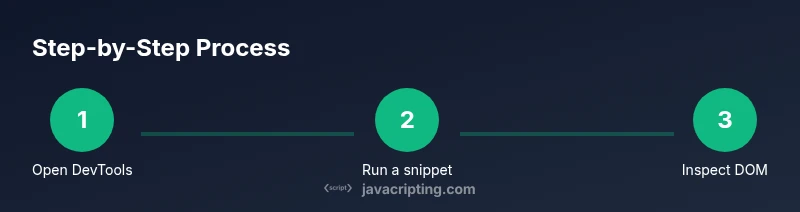
Open your chosen browser and press F12 or right-click and select Inspect. This exposes DevTools where you can run quick experiments and inspect the DOM. Why: DevTools provide immediate feedback when you’re learning how to javascript in browser.
Tip: Tip: Pin the Console panel to keep it visible while you work with the Elements panel. - 2
Run a simple snippet in the Console
In the Console, type a simple expression like console.log('hello') and press Enter. This confirms the JavaScript runtime is active and helps you verify syntax quickly. Why: Console gives instant feedback on small experiments.
Tip: Tip: Use template literals for readable strings: `console.log(`Hello from your browser, ${name}`)`. - 3
Create a minimal HTML page with an inline script
Add an HTML file with a script tag, e.g., <script>document.body.style.backgroundColor = 'lightblue';</script>. Open the file in the browser. Why: Inline scripts are the simplest way to see immediate results.
Tip: Tip: Use defer on external scripts to ensure the DOM is loaded first. - 4
Load an external module via type="module"
Create a separate module file (module.js) exporting a function, then include <script type="module" src="module.js"></script> in your HTML. Why: Modules organize code and enable import/export syntax.
Tip: Tip: Use import { fn } from './module.js' and run within a local server for module resolution. - 5
Manipulate DOM elements from your script
Select an element with document.querySelector and modify its text or attributes. Why: Direct DOM manipulation is essential for interactive pages and demonstrates how to javascript in browser in practice.
Tip: Tip: Batch DOM changes to reduce layout reflows; update multiple properties together. - 6
Attach an event listener for user interaction
Add an event listener, such as button.addEventListener('click', () => { ... }), to respond to user actions. Why: Event-driven design is central to responsive UI.
Tip: Tip: Debounce frequent events like scroll or input to improve performance. - 7
Fetch data asynchronously
Use fetch('/api/data').then(r => r.json()).then(data => render(data)); to obtain remote data and update the UI. Why: Async patterns are essential for modern web apps.
Tip: Tip: Always handle errors with try/catch in async functions and show user-friendly messages. - 8
Debug and profile in DevTools
Set breakpoints, inspect variables, and review network activity to understand your code’s behavior. Why: Debugging is a critical skill for reliable in-browser JavaScript.
Tip: Tip: Use conditional breakpoints to pause only when a variable reaches a value you care about. - 9
Review security and best practices
Ensure input validation, avoid eval, and apply CSP where possible to reduce risks when running in-browser scripts. Why: Security is essential when learning how to javascript in browser.
Tip: Tip: Prefer non-eval approaches and keep third-party scripts from untrusted sources.
Questions & Answers
What is the quickest way to start learning how to javascript in browser?
Open DevTools in your browser, run a simple console.log, and try a small inline script. This provides immediate feedback and a safe sandbox to begin learning.
Open DevTools, run a simple console log, and experiment with a tiny inline script. It’s a fast, safe way to start learning.
Should I use modules or inline scripts for beginners?
For beginners, start with inline scripts to see immediate results, then move to modules to learn good structure and future scalability.
Start with inline scripts to see results quickly, then switch to modules to learn scalable code structure.
How can I debug JavaScript effectively in the browser?
Use breakpoints, the console, and the Network panel to trace issues. Practice reproducing bugs and step through code to locate the root cause.
Use breakpoints and the Network panel to trace issues, then step through your code to find root causes.
What are common mistakes when learning in-browser JavaScript?
Common mistakes include running untrusted code, overusing eval, and ignoring asynchronous error handling. Focus on safe, readable patterns and proper error management.
Common mistakes are running untrusted code and ignoring async errors. Stick to safe, readable patterns.
Do I need a local server for learning module syntax?
A local server helps load module scripts correctly and mirrors real-world setups. Use a simple server like http-server or a built-in one in your editor.
Yes, a local server helps with module loading; use a lightweight server to practice.
How do I test cross-browser compatibility for in-browser scripts?
Test in multiple browsers and use feature detection (e.g., 'if (window.fetch)') rather than relying on browser-specific features.
Test in several browsers and rely on feature detection rather than browser-specific features.
Watch Video
What to Remember
- Define a clear goal before coding.
- Use devtools to isolate issues quickly.
- Prefer modules and separate files for organization.
- Handle asynchronous tasks with Promises/async-await.