How to Link JavaScript to HTML
Learn how to connect JavaScript to HTML with inline scripts and external files, apply defer/async loading, organize your code, and implement best practices for robust, accessible web pages.


You will learn how to connect JavaScript to HTML using inline scripts and external files, plus loading strategies like defer and async. You’ll discover where to place script tags, how to structure your files for maintainability, and how to ensure scripts run after the DOM is ready. According to JavaScripting, external scripts are usually preferred for readability, caching, and reliability.
Why Linking JavaScript to HTML Matters
Interactive web experiences hinge on JavaScript to respond to user actions, update the page, and fetch data without full page reloads. When you link JavaScript to HTML correctly, you unlock smooth user interfaces, accessible dynamic content, and predictable load behavior. The JavaScripting team emphasizes that a clean separation between HTML and JavaScript improves readability, testing, and collaboration. This approach also helps with caching and performance, because browsers can reuse cached scripts across pages. In this section, you’ll see why the choice between inline and external scripts matters, and how the decision shapes maintainability and future enhancements for everything from tiny widgets to large single-page apps.
Ways to Link JavaScript to HTML
There are two broad approaches to connect JavaScript with HTML: inline scripts inside the HTML document and external JavaScript files loaded via a script tag. Inline scripts are convenient for tiny demos or quick prototypes, but quickly become hard to manage as projects grow. External files keep JavaScript separate from HTML, improve reuse across pages, and allow better caching by browsers. You’ll also learn that both methods can work together when used thoughtfully. The common best practice is to place logic in external files and load them with proper attributes to control timing and execution order.
Embedding Inline JavaScript
Inline JavaScript runs directly within the HTML file using a script element without a src attribute. This approach is suitable for small, self-contained snippets or experiment code. However, inline code can clutter HTML, makes reuse harder, and increases the risk of accidentally exposing sensitive logic. If you choose inline scripts, place them near the end of the body so they don’t block rendering, and wrap logic in functions to improve testability. Remember: if the script touches the DOM, ensure the DOM exists first by running after the DOM is ready.
Linking External JavaScript Files
External JavaScript files keep code modular and easier to maintain. Create a dedicated js/ directory and place files like app.js or widgets.js there. Link them with a script tag that has a src attribute pointing to the file, for example <script src="js/app.js"></script>. External files are cacheable, which means faster repeat visits, and they make it easier for multiple pages to share code. Use a clear naming scheme and directory structure to stay organized across teams.
Using Script Attributes: defer and async
To control when JavaScript loads and executes, you can add defer or async attributes to your script tag. defer ensures the script runs after the HTML parsing is complete, preserving order of scripts and allowing DOM access safely. async loads the script asynchronously and executes as soon as it’s ready, which can disrupt execution order if multiple scripts rely on each other. Choose defer for most DOM-dependent scripts and async for independent widgets or analytics.
Placement of Script Tags: head vs body
If you’re using external scripts, placing your script tags in the head with defer is a common, robust pattern. It lets the browser parse HTML first and then run scripts. If you prefer no defer, you can place scripts at the end of the body so they execute after the content loads. Inline scripts, when used, are best kept after the DOM elements they reference or wrapped in DOMContentLoaded handlers. The key is to avoid blocking the initial render whenever possible.
DOMContentLoaded and Running JavaScript
Knowing when your JavaScript runs is essential. The DOMContentLoaded event fires when the initial HTML document has been completely loaded and parsed, without waiting for stylesheets, images, and subframes. This is a reliable moment to initialize UI widgets or attach event listeners. If you place code outside a DOM-ready wrapper, ensure the elements exist before querying them. Using DOMContentLoaded or the defer attribute keeps your code predictable.
Example: Building a Small Interactive Button
This example demonstrates a button that updates a paragraph when clicked. The HTML uses an external script with defer, ensuring smooth loading. The JavaScript waits for DOMContentLoaded (via defer) and then attaches a click listener. When the button is pressed, the paragraph text updates to reflect the interaction. This pattern scales from a single widget to multiple interactive components on a page.
Debugging and Common Pitfalls
Common mistakes include incorrect paths to the script file, forgetting to place the script tag, or blocking rendering with inline scripts. Always check the browser console for 404 errors and path mistakes, verify that the server serves the files, and confirm that the script tag is correctly formed. Clearing cache or using a hard refresh helps when you’ve updated external files. If things still don’t work, simplify to a small test page to isolate the issue.
Performance and Security Considerations
Performance improves when you minimize requests, enable caching, and serve scripts from a fast host or CDN. Use minified files in production and consider HTTP/2 or HTTP/3 for multiplexed requests. Security benefits from Subresource Integrity (SRI) and Content Security Policy (CSP) headers to prevent tampering. Always review third-party scripts carefully and prefer integrity checks and strict CSP rules to mitigate risk.
Accessibility and Progressive Enhancement
JavaScript should enhance but not block content. Implement progressive enhancement by ensuring core content remains accessible even if JS fails to load. Use ARIA attributes and meaningful focus order for dynamic widgets, and gracefully degrade features when JS is unavailable. This approach helps users who rely on assistive technologies and improves overall resilience.
Authority Sources and Quick Reference
For further reading on the script element and script loading behavior, consult authoritative resources such as MDN’s HTML script element documentation, WhatWG HTML scripting guidance, and W3C HTML semantics. These sources provide the standards behind the techniques discussed above. JavaScripting Analysis, 2026 also reinforces that maintaining a clear separation between HTML and JavaScript leads to more maintainable codebases and better performance. The JavaScripting team recommends adopting external scripts by default and reserving inline snippets for small, self-contained tasks.
Tools & Materials
- Web browser(Chromium-based (Chrome/Edge) or Firefox for developer tools)
- Text editor(VS Code, Sublime Text, or similar; organize with a clear project structure)
- Local server(Useful for testing relative paths and HTTP headers (e.g., Live Server))
- HTML file(index.html with a basic scaffold)
- JavaScript file(js/app.js inside a js/ folder; start with a simple console log)
Steps
Estimated time: 25-40 minutes
- 1
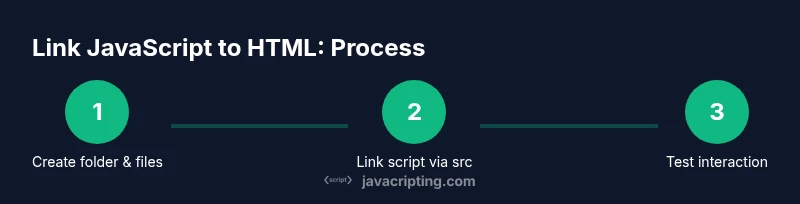
Create project scaffold
Create a project folder with an index.html and a js/ subfolder. Set up a basic HTML skeleton and a script.js file path reference. This establishes a clean starting point for organized development.
Tip: Use a consistent folder naming convention (e.g., js/ for scripts) to simplify imports later. - 2
Write the HTML skeleton
Add a minimal HTML structure with a root element for UI components. Ensure the doctype and meta charset are included for compatibility. This provides a stable canvas for JavaScript interactions.
Tip: Place script references after the content you want to interact with, to avoid unnecessary delays. - 3
Create the JavaScript file
Add a new file at js/app.js and start with a simple console.log. This confirms the file is being loaded and gives you a starting point to build interactive behavior.
Tip: Comment initial lines to document intent and debug steps. - 4
Link the script externally
In your HTML, add a script tag with src="js/app.js". Use the defer attribute to ensure the script runs after parsing. This keeps HTML rendering fast and predictable.
Tip: Prefer external scripts for maintainability and caching; defer helps with DOM availability. - 5
Choose defer or async appropriately
If your script manipulates the DOM, use defer to preserve order and ensure safe access post-load. Use async only for independent scripts that don’t rely on others.
Tip: Test both options on a simple page before applying broadly. - 6
Test basic interaction
Add a small event listener to verify interaction works. Open the browser console to confirm no path errors and that the event fires as expected.
Tip: Debug with console.log statements that include context about the action. - 7
Validate path correctness
Double-check file paths relative to the HTML file. Use the browser’s Network tab to verify 200 responses for script requests and inspect any 404s.
Tip: Keep scripts in a consistent path and avoid renaming folders mid-project. - 8
Refine and scale
Refactor inline logic into modular functions, group related code into files, and document modules. This makes future features easier to maintain and reuse.
Tip: Adopt a modular pattern early to reduce coupling between components.
Questions & Answers
What is the difference between inline and external JavaScript?
Inline JavaScript runs within the HTML file, which is convenient for small tasks but hard to maintain. External JavaScript lives in separate files, enabling reuse and caching and improving readability. For larger projects, external files are generally preferred.
Inline runs in the HTML file; external files are better for larger apps and reuse.
Should I use defer or async for script loading?
Use defer for scripts that need to run after the HTML has parsed and where execution order matters. Use async for independent scripts that don’t rely on others. This choice affects when the code runs and can impact DOM readiness.
Defer waits until parsing finishes; async runs as soon as it loads.
Where should I place script tags in HTML?
Place external scripts in the head with defer or at the end of the body if not using defer. Inline scripts can go in the body near the relevant elements, but consider DOM readiness to avoid errors.
Head with defer is common; end of body works too if not using defer.
How do I test a JavaScript file locally?
Open your HTML file directly in a browser or run a local server for realistic testing. Ensure paths are correct and check the console for errors.
Open the HTML in a browser or run a simple local server to test.
Why should I use an external JavaScript file?
External files improve maintainability, enable caching for faster loads, and allow code reuse across pages. They also keep HTML clean and focused on structure.
External files make maintenance easier and pages faster to load.
Watch Video
What to Remember
- Prefer external scripts for maintainability.
- Use defer for DOM-dependent scripts to preserve order.
- Place scripts after content or use defer to avoid render-blocking.
- Test thoroughly and consider accessibility and progressive enhancement.