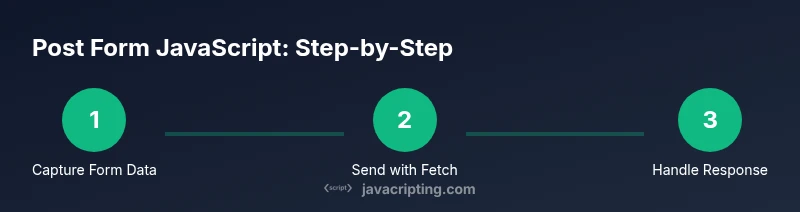
Post Form JavaScript: A Practical Guide to Client-Side Form Submissions
Learn how to post form data with JavaScript using fetch, FormData, and validation. A practical, step-by-step guide to client-side form submissions without page reloads.


By the end, you will post form data from a browser using JavaScript without reloading the page. You'll learn to prevent default form submission, build a FormData payload, send it with fetch, and handle JSON or text responses. This guide covers basic to robust patterns, including validation, error handling, and CSRF considerations.
What is Post Form JavaScript?
Post form javascript refers to the practice of sending user-entered data to a server using JavaScript-driven techniques, rather than a traditional form submission that reloads the page. In this approach, you intercept the browser's submit event, prevent the default action, assemble the data into a payload, and dispatch it via HTTP methods like POST. The goal is a seamless user experience, faster feedback, and more control over error handling and validation. This guide introduces the core concepts, including FormData, fetch, and lightweight error handling, so you can implement robust client-side submissions with confidence.
You will see how to choose between FormData and JSON payloads, how to structure requests, and how to respond gracefully to success or failure. Whether you’re building a contact form, a signup flow, or an API-driven submission, these patterns scale across projects. As you practice, you’ll also learn to think about accessibility, validation, and security from the start.
According to JavaScripting, mastering post form javascript is a foundational skill for modern web development, enabling fluid interactions without sacrificing reliability. This article blends theory with practical steps so aspiring developers can implement production-grade submissions quickly.
Events and Preventing Default Behavior
A key first step in post form javascript is attaching an event listener to the form’s submit event and preventing the browser’s default page reload. This gives you control to validate inputs, assemble payloads, and manage the response asynchronously. Typical code looks like:
- Select the form element
- Add a submit listener
- Call event.preventDefault() at the start
- Validate inputs and proceed if valid
Why this matters: without preventDefault, the browser would navigate away, and you’d lose the data already entered. With prevention, you can provide immediate feedback, show inline errors, and preserve the user’s context. In large forms, consider debouncing or gating submissions if there are rapid attempts.
In practice, you’ll often extract values from inputs, check required fields, and decide whether to proceed to a network request or show messages explaining what’s missing.
Working with FormData
FormData is a powerful interface for building payloads from HTML forms. You can create a FormData object from a form element, or append values manually. Key benefits include handling file inputs, URL-encoded transmission, and seamless integration with fetch.
- Create from a form: const data = new FormData(formElement);
- Append additional fields: data.append('extra', value);
- When sending, the browser sets the correct multipart/form-data content type automatically, including boundary strings.
If your API expects JSON instead of multipart data, you can convert the fields into a plain object and send JSON with fetch. The trade-off is that file uploads require a different strategy (e.g., multipart) compared to simple text fields.
Sending Data with fetch
Fetch is the modern API for network requests. When posting form data, you’ll typically set method: 'POST' and supply the body as FormData or a JSON string. Remember to set credentials when needed and handle CORS appropriately. Example patterns include:
- Using FormData: fetch(url, { method: 'POST', body: data })
- Using JSON: const payload = Object.fromEntries(data.entries()); fetch(url, { method: 'POST', headers: {'Content-Type': 'application/json'}, body: JSON.stringify(payload) })
Consider error handling: check response.ok, parse JSON, and surface user-friendly messages. Also, for security, avoid leaking server errors to the client in production.
Accessibility tip: ensure that any loading indicators and messages are announced by screen readers for a better user experience.
Handling Server Responses
After submission, your client must process the server’s response gracefully. Common patterns include:
- Parse JSON responses and show success messages or render returned data.
- Handle non-200 status codes with clear error messages.
- Use try-catch around JSON parsing to avoid crash if the server returns invalid data.
Design responses to inform users what happened and what to do next. For instance, on success you might reset the form and show a confirmation banner; on error, you could highlight invalid fields and display a specific explanation. Logging and telemetry can help you diagnose issues in production without exposing sensitive details.
Keep an eye on timeouts and network errors, and implement a retry strategy with backoff if appropriate for your app’s UX.
Validation and UX Considerations
Client-side validation improves perceived performance and reduces server load. Validate required fields, email formats, password strength, and cross-field dependencies before sending. Provide real-time feedback as users type, with accessible error messages positioned near the fields. Focus management after errors helps keyboard users navigate efficiently.
UX patterns to consider:
- Inline validation with instant feedback
- Disabled submit button until all fields pass validation
- Clear success indicators and a concise confirmation message
- Accessible live regions for status updates
Client-side validation should complement, not replace, server-side checks. Always validate data on the server as the ultimate authority, and never rely solely on client-side checks for security.
Security and Best Practices
Posting forms touches security concerns like CSRF, input sanitization, and proper server-side validation. To mitigate CSRF, ensure your API validates tokens or uses same-origin policies, especially for state-changing requests. Always sanitize and validate on the server, and avoid echoing raw input back to the page. For JSON payloads, validate shapes and types before processing. If your endpoint requires authentication, send credentials securely via cookies with HttpOnly flags when appropriate, or use authorization headers.
Other best practices:
- Use HTTPS to protect data in transit
- Limit payload size and rate limit to prevent abuse
- Avoid including sensitive information in error messages
- Log errors server-side and provide generic messages to clients
Finally, consider progressive enhancement: your form should degrade gracefully if JavaScript isn’t available, perhaps falling back to a traditional submit. This ensures accessibility and broader compatibility.
Real-world Example: Contact Form
Suppose you build a contact form with fields for name, email, subject, and message. The following flow illustrates post form javascript in action:
- User fills the form and clicks Submit.
- Your script intercepts the submit event and prevents default behavior.
- Validation checks pass; you assemble data via FormData.
- You post the data to /api/contact with fetch and await a response.
- On success, you display a thank-you message and reset fields; on error, you show inline error messages and suggest next steps.
Code concepts involved:
- FormData construction and optional additions
- fetch options with method, headers, and body
- JSON vs multipart handling depending on server expectations
This kind of pattern is common across forms like signups, surveys, or support requests, and scales well with additional fields or file uploads.
Debugging and Common Pitfalls
Even well-structured forms can stumble. Common issues include:
- Not preventing default submission, resulting in a page reload
- Incorrect Content-Type when sending JSON or FormData
- Missing server-side CSRF checks for state-changing requests
- Not handling network errors or timeouts gracefully
Tips to debug:
- Use browser devtools Network tab to inspect requests and responses
- Console log payload shapes before sending and after receiving
- Validate that FormData contains expected keys (formData.has('name'))
If you encounter CORS errors, verify server CORS configuration and the allowed origins. Regularly test forms in environments that mimic production to catch issues early.
Best Practices Checklist
- Always gracefully handle errors and inform users
- Validate both client- and server-side; never rely solely on client-side checks
- Use FormData for file uploads and mixed data, JSON for structured data without files
- Keep user experience smooth with loading indicators and non-blocking UI
- Securely manage tokens and credentials, and ensure HTTPS is enforced
Tools & Materials
- Modern browser(Chrome/Edge/Firefox with DevTools enabled)
- Code editor(VSCode, Sublime Text, or similar)
- Local server or API endpoint(A test API endpoint that accepts POST requests (e.g., /api/contact))
- Sample HTML form(Include at least name, email, message fields)
- Browser DevTools(Network tab for inspecting requests and responses)
- HTTPS access(Production endpoints must be served over HTTPS)
Steps
Estimated time: 30-60 minutes
- 1
Identify form requirements
Define the fields needed, validation rules, and the server endpoint. Decide whether you will send all data as JSON or as multipart FormData. Clarify error handling and success messaging before you write code.
Tip: Write a quick data map to know what to collect and validate. - 2
Attach submit handler
Select the form element and add a listener for the submit event. Call event.preventDefault() at the start to stop the browser from reloading the page.
Tip: Use passive event listeners where appropriate to improve performance. - 3
Validate on the client
Check required fields and basic formats (e.g., email). Provide inline messages and disable the submit button until valid.
Tip: Avoid blocking UI with overly aggressive checks; show help text next to fields. - 4
Create FormData or payload
If using FormData, construct from the form element or append additional fields. If sending JSON, convert the form data to JSON with a simple object map.
Tip: FormData handles files automatically; for JSON, ensure correct key naming. - 5
Send the request with fetch
Post to your endpoint with appropriate headers. Decide between FormData and JSON based on server expectations.
Tip: When using JSON, set Content-Type to application/json. - 6
Handle the response
Parse JSON, check status, and show a user-friendly message. Handle errors with a fallback UI.
Tip: Always account for slow networks and timeouts. - 7
Verify security requirements
Ensure CSRF protection if necessary and use HTTPS. Sanitize server responses and validate on the server side.
Tip: Do not rely on client-side validation for security. - 8
Test comprehensively
Test with valid data, invalid data, missing fields, and simulated network failures. Check accessibility and keyboard navigation.
Tip: Test across devices and networks for real-world reliability.
Questions & Answers
How do I prevent the default form submission in JavaScript?
Attach a submit event listener to the form and call event.preventDefault() at the start. This stops the browser from reloading the page so you can handle data asynchronously.
Attach a listener to the form’s submit event and call preventDefault to stay on the same page while sending data.
Should I always use FormData or JSON?
Use FormData when you need to send files or mixed data. Use JSON when your API expects structured data without multipart encoding. Both approaches are valid; pick the one your server is designed to handle.
Choose FormData for mixed data and files, or JSON when your API expects a JSON payload.
How can I handle server errors effectively?
Check response.ok and parse the body for error details. Show a user-friendly message and consider retry logic or guidance on next steps.
Check if the response is ok, then show a helpful message or ask the user to try again later.
What about CSRF protection for POST forms?
If your API performs state-changing operations, validate a CSRF token or use same-origin policies. Maintain secure cookies and tokens.
Make sure your server validates CSRF tokens when necessary to prevent cross-site requests.
Can I post form data to external domains with CORS enabled?
Yes, if the external domain allows it via CORS headers. The browser will enforce cross-origin rules, so ensure the API permits your origin.
Cross-domain requests work only if the server allows it with proper CORS headers.
Watch Video
What to Remember
- Post form data with JavaScript using fetch or FormData
- Prevent default submission to enable client-side validation
- Choose payload format (FormData vs JSON) based on server expectations
- Handle responses gracefully with clear UX feedback
- Secure submissions with HTTPS and proper server-side validation