JavaScript for Upload File: A Practical Step-by-Step Guide
Learn how to upload files with JavaScript using HTML inputs, FormData, and fetch. This practical guide covers drag-and-drop, progress updates, validation, and security.


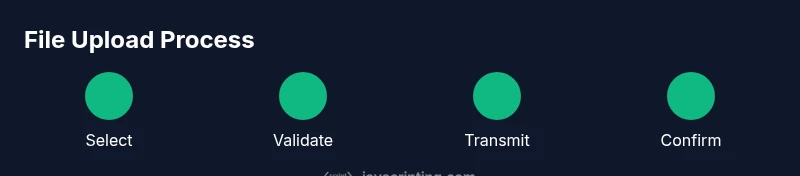
During this tutorial you will implement a robust client-side file upload with JavaScript using an HTML file input or drag-and-drop, build a FormData payload, and transmit it via Fetch. You'll add file validation, show upload progress, manage errors gracefully, and keep data secure on the network from client to server.
Why client-side file upload matters
Uploading files entirely on the client side is a foundational capability for many web applications, from profile picture updates to document submission portals. A thoughtful approach reduces server load, enables faster feedback, and improves accessibility. According to JavaScripting, the key is to balance validation, UX, and security without overloading the client with heavy logic. The File API lets you inspect user-selected files, while FormData makes it simple to serialize those files for transmission. When you pair these tools with progressive enhancements (drag-and-drop, progress indicators, and clear error messaging), users feel in control and developers gain more predictable behavior. In short, a robust client-side upload experience is a win for performance, reliability, and user satisfaction. JavaScripting's team notes that focusing on the end-to-end experience—selection, validation, upload, and feedback—yields the most consistent results across devices.
Prerequisites and server expectations
Before you start, ensure you have: a modern browser (supports the File API and FormData), a server endpoint that accepts multipart/form-data, and a basic understanding of HTML/JavaScript. The server should validate file type, size, and content securely, and return a clear JSON response indicating success or failure. If you’re building a public API, consider CORS settings and authentication. JavaScripting analysis emphasizes designing a resilient server contract: predictable error codes, consistent payload structure, and safe storage paths. With these prerequisites in place, the client-side code can focus on UX without risking server fragility.
Working with input[type=file] and drag-and-drop
The typical starting point is a file input and a drag-and-drop zone. The file input offers a familiar selection flow, while a drop zone delivers a modern, intuitive experience. You’ll wire events to read File objects, validate them, and prepare a FormData payload. Here is a minimal setup you can adapt:
<input type="file" id="fileInput" multiple accept="image/*" />
<div id="dropZone" class="drop-zone">Drop files here</div>
The JavaScript binds listeners for both selection and dropping, captures the FileList, and triggers your upload routine. Remember to prevent default browser behavior for drag events and provide a visible cue when files are accepted.
Creating FormData and sending via fetch
FormData is the backbone of most browser-based file uploads. It allows you to append File objects and other metadata, producing a multipart/form-data payload suitable for server-side parsing. The Fetch API can send this payload with a straightforward POST request. Example:
const fileInput = document.getElementById('fileInput');
const formData = new FormData();
for (const file of fileInput.files) {
  formData.append('files[]', file);
}
fetch('/upload', {
  method: 'POST',
  body: formData
})
  .then(res => res.json())
  .then(data => console.log(data))
  .catch(err => console.error(err));
If you need to support older browsers, you can fall back to XMLHttpRequest (XHR) for manual progress tracking, but Fetch remains the modern, readable option in most environments.
Providing progress updates and UX improvements
Users expect feedback during uploads. Native progress events are available via XMLHttpRequest (XHR) in modern browsers, and some browsers expose upload progress for Fetch under experimental APIs. A practical approach is to implement progress using XHR while keeping a higher-level fetch-based path for non-progress needs. Example:
const xhr = new XMLHttpRequest();
xhr.open('POST', '/upload');
xhr.upload.onprogress = (e) => {
  if (e.lengthComputable) {
    const percent = Math.round((e.loaded / e.total) * 100);
    document.querySelector('#progress').style.width = percent + '%';
    document.querySelector('#progress').textContent = percent + '%';
  }
};
xhr.onload = () => console.log('Upload complete');
xhr.onerror = () => console.error('Upload failed');
xhr.send(formData);
Pro tip: keep progress UI accessible with aria-valuenow and screen-reader friendly messages. Note: Fetch API can be extended with ReadableStream to monitor progress in some environments, but this is less widely supported and adds complexity.
Validation and security considerations
Client-side validation improves UX but should never replace server-side checks. Validate file size, type, and optional content restrictions (e.g., image dimensions for avatars). Do not rely on client-side type checking for security. Prefer validating on the server and returning precise error messages to the client. Use HTTPS to protect payloads in transit, and ensure the server sanitizes filenames and handles storage paths safely. The client should also guard against accidental multiple submissions and provide cancel capabilities. JavaScripting analysis suggests coupling user-friendly error messages with consistent retry behavior for a smoother experience across devices.
Handling large files and chunked uploads
Large files pose challenges for both bandwidth and reliability. Chunked uploads—dividing a file into smaller parts and sending them sequentially—reduce the risk of losing entire uploads due to network flakiness. You can implement client-side chunking with File.slice and a loop, then send each chunk with a small metadata payload indicating index and total count. On the server, reassemble chunks in the correct order. This approach also enables pause/resume support and better progress accuracy. Always coordinate chunking with server-side assembly logic and error recovery to avoid gaps or duplicates.
Full client-side example: integrated file upload script
The following example demonstrates a cohesive client-side workflow that combines selection, drag-and-drop, FormData creation, and progress feedback. It highlights best practices for UX and resilience, while keeping the code approachable for aspiring developers. The snippet intentionally keeps concerns separated (UI, data preparation, and network) to promote readability and maintainability. You can adapt this scaffold to your backend, whether it’s a REST API or a GraphQL wrapper, and extend it with chunked uploads if needed.
Tools & Materials
- HTML input element (type="file")(Support multiple files with the multiple attribute; use accept to restrict types.)
- Drag-and-drop zone(Provide visual feedback for drag states and accessible focus styles.)
- FormData API(Append files with keys like 'files[]' and include any metadata.)
- Fetch API(Use for modern, readable network requests; consider a fallback to XHR for progress.)
- Server endpoint URL(Configure to accept multipart/form-data and handle authentication if needed.)
- Client-side validation utilities(Validate type, size, and basic content on the client before sending.)
- Backend API documentation(Helpful for ensuring the server accepts the payload as expected.)
Steps
Estimated time: 25-40 minutes
- 1
Set up HTML form and drop zone
Create a simple file input and a drag-and-drop area. Attach event listeners to collect selected files and visually indicate when files are ready for upload.
Tip: Keep the UI accessible with aria attributes and keyboard support. - 2
Bind events for selection & dropping
Handle the change event on the file input and the drag-and-drop events on the drop zone. Normalize the FileList into an array for processing.
Tip: Prevent default drag events to avoid the browser attempting to open files. - 3
Create FormData with the files
Instantiate FormData and append each file under a consistent key like 'files[]'. Include any metadata you need (filename, user id, etc.).
Tip: If you support multiple files, loop over fileList and append each item. - 4
Send the payload with fetch
Post the FormData to your upload endpoint. Handle JSON responses and errors in a centralized way to simplify UI updates.
Tip: Consider retry logic for transient network failures. - 5
Show upload progress
Option A: use XMLHttpRequest for reliable progress events. Option B: leverage stream-based progress if your environment supports it.
Tip: Display percentage, ETA, and a cancel option for better user experience. - 6
Handle responses and errors
Parse server responses, update UI to reflect success or failure, and reset state as needed. Log useful diagnostics without exposing sensitive data.
Tip: Provide user-friendly error messages and a retry path.
Questions & Answers
What is the best way to handle file uploads securely in JavaScript?
Validate file type, size, and content on the client, but rely on server-side validation and sanitization. Use HTTPS and authenticated endpoints. Return clear error messages for failures.
Validate on both sides, use HTTPS, and ensure server sanitizes uploads. The client should show clear error messages.
Can I upload multiple files at once?
Yes. Iterate over the FileList and append each file to FormData under a consistent key such as files[]. The server should expect an array under that key.
Yes, you can upload several files; append each to FormData and send in one request.
Why use FormData instead of a plain fetch body?
FormData handles multipart encoding automatically, which is ideal for binary files. It also allows attaching metadata easily. A plain JSON body cannot carry raw binary data efficiently.
FormData is the natural choice for file uploads because it handles binary data well.
How can I show progress for large uploads?
Progress is shown using the XMLHttpRequest upload events or advanced techniques with Fetch streaming. XHR provides reliable onprogress events across major browsers.
Use XHR for reliable progress updates during large uploads.
What should I do if an upload fails midway?
Provide a retry button, preserve the file reference, and optionally implement chunked uploads to resume from where it left off. Always log sufficient details for debugging.
Offer a retry option and consider chunking for large or unstable networks.
Watch Video
What to Remember
- Use FormData for file uploads.
- Provide progress feedback and error handling.
- Validate on client and server for security.
- Prefer progressive enhancement for broad compatibility.