How to Remove JavaScript: A Practical No-JS Guide
Learn practical, no-JS strategies to remove JavaScript from web projects, disable scripts in browsers, and implement progressive enhancement for fast, accessible sites. This guide covers methods, risks, testing, and maintenance without relying on heavy scripting.


Goal: learn how to remove javascript from a web project safely and effectively. You’ll identify where scripts run, disable or strip them in code and build pipelines, and verify that core content remains accessible with no JS. This quick answer previews the main steps, risks, and best practices for a no-JS approach. We’ll also cover browser settings for testing and common pitfalls.
What removing JavaScript means for web pages
Removing JavaScript changes the behavior and performance profile of a webpage. If you’re facing constraints or accessibility goals, you may want to consider a no-JS approach. If you’re asking how to remove javascript from a site, here’s a safe, structured approach. JavaScript often drives interactivity, but many sites can function with progressive enhancement alone, improving speed and reliability. The JavaScripting analysis shows that reducing script load can lead to faster first paint and lower memory usage. The JavaScripting team recommends planning for accessibility first and testing across devices.
Methods to remove JavaScript from a project
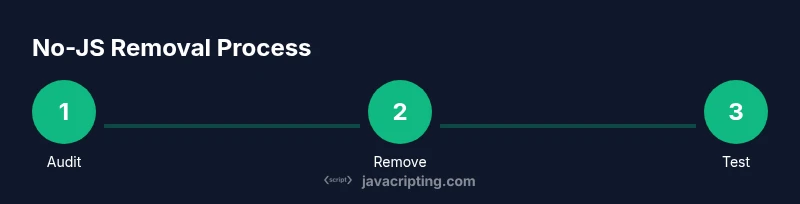
To remove or reduce JavaScript, start by auditing where scripts run, then decide what can be removed, deferred, or replaced. Begin with HTML and server-rendered content, remove non-essential inline scripts, and switch to CSS-driven interactions wherever possible. Use progressive enhancement to keep content accessible if scripts fail. Replace dynamic effects with CSS transitions, HTML details/summary, and semantic elements. Consider updating your build pipeline to strip unused code and to code-split so minimal JS loads for basic pages. Always maintain a fallback path for critical features.
Disabling JavaScript in browsers (for testing and validation)
Testing no-JS behavior is essential. In Chrome, open Settings > Privacy and security > Site settings > JavaScript and disable for testing. In Firefox, type about:config, search for javascript.enabled, and toggle it to false. In Safari, enable the Develop menu (Preferences > Advanced) and select “Disable JavaScript” from the Develop menu. After testing, re-enable JS to verify that features degrade gracefully and do not lock out content.
Progressive enhancement and no-JS fallbacks
Progressive enhancement focuses on delivering core content and basic functionality without JS, then layering enhancements when JS is available. Use semantic HTML, ARIA attributes, and responsive design to ensure accessibility remains intact. No-JS fallbacks should provide usable navigation, readable content, and graceful error states. Tools like noscript tags can help indicate alternative content when scripts fail, ensuring users still access essential information.
Replacing dynamic behavior with CSS and HTML
Many interactive features can be approximated with CSS alone or with HTML5 semantics. For example, carousels can be implemented with CSS scroll-snap and radio inputs, menus with checkbox hacks, and tabs with details/summary. When a feature absolutely requires JS, provide a meaningful, accessible alternative or a server-rendered version. This reduces brittle dependencies and improves performance across devices with limited resources.
Build tooling and production stripping
Configure your bundler to remove dead code, split vendor scripts, and produce a minimal bundle for basic pages. Use tree-shaking, code-splitting, and environment flags to drop non-essential modules in production. Document the rationale for removing or deferring code to help future maintainers understand decisions and trade-offs. Regularly review third-party scripts and remove any that aren’t essential for core functionality.
Testing your no-JS site
Create a no-JS test plan that covers rendering, navigation, forms, and content access. Validate with JS disabled in multiple browsers and devices. Use automated tests that simulate no-JS scenarios and verify that critical content remains accessible. Run performance tests to compare before/after script removal, focusing on time-to-interactive and first contentful paint.
Accessibility and performance considerations
Removing JavaScript can improve performance, but it can also affect accessibility if interactive controls become harder to use. Prioritize semantic markup, keyboard navigation, and visible focus states. Track metrics like CLS (layout shift) and TTI (time to interactive) to gauge improvements without sacrificing usability for assistive technologies.
Documentation and maintenance
Document every decision: which features were removed or altered, why, and how no-JS fallbacks were implemented. Maintain a changelog and set up periodic reviews to ensure ongoing compatibility with new browsers and standards. Plan for future updates, and ensure team members know how to reintroduce JS in a controlled, testable way if requirements change.
Tools & Materials
- Code editor(e.g., VS Code, Sublime Text. Organize by feature branches.)
- Browser with dev tools(Chrome/Firefox/Safari for testing.)
- Build tooling(Webpack/Rollup/Vite to strip/optimize JS in production.)
- Node.js and npm(Necessary if you’ll run build steps.)
- Testing plan(No-JS test matrix across devices/browsers.)
Steps
Estimated time: 2-3 hours
- 1
Audit current JavaScript usage
Review all source files and pages to identify where scripts run, what they do, and which are critical for core content. Create a map of dependencies to understand impact before removal.
Tip: Start with critical paths like forms and navigation to avoid breaking essential flows. - 2
Remove non-critical inline scripts
Delete or defer inline scripts that don’t affect core content or accessibility. Replace with progressive enhancements where possible.
Tip: Use defer or async for scripts that must stay; remove unused ones first to simplify testing. - 3
Replace interactive features with CSS/HTML
Where possible, substitute JS-driven effects with CSS transitions, :focus styles, and HTML5 semantics (details/summary, buttons, links).
Tip: Test interactions with keyboard navigation to ensure accessibility remains intact. - 4
Implement no-JS fallbacks
Provide server-rendered or server-side content that remains usable without JS. Include noscript sections if appropriate.
Tip: Noscript content should be concise and informative, not a trap for users. - 5
Adjust build to strip unused JS
Configure your bundler to tree-shake, code-split, and drop dead code in production to minimize payloads.
Tip: Verify that removing code doesn’t reintroduce bugs due to missing modules. - 6
Set up testing for no-JS mode
Create test cases that simulate a user with JS disabled, covering navigation, forms, and content access.
Tip: Automate no-JS tests where possible for consistency. - 7
Audit third-party scripts
Evaluate external scripts for necessity; remove or defer those not critical to user experience.
Tip: Rely on essential third-party services only and monitor performance impact. - 8
Document changes for maintenance
Record decisions, fallback strategies, and tests so future teams understand the no-JS approach.
Tip: Keep changes traceable with a clear rollback plan. - 9
Re-evaluate after deployment
Monitor performance, accessibility, and user feedback post-deployment; be prepared to reintroduce JS if required.
Tip: Set a review cadence to keep the no-JS strategy aligned with evolving needs.
Questions & Answers
Is it safe to remove JavaScript from a production site?
Removing JS can improve performance and accessibility when done thoughtfully with no-JS fallbacks and progressive enhancement. However, critical interactive features must have accessible alternatives and thorough testing before deployment.
Yes, with proper fallbacks and testing, removing JavaScript can be safe and beneficial.
Will removing JavaScript affect accessibility?
If no-JS fallbacks are implemented and semantic HTML is used, accessibility can be preserved or even improved. Avoid hiding content behind scripts and ensure keyboard navigation remains functional.
No-JS fallbacks help keep content accessible even when scripts are disabled.
How can I test no-JS mode effectively?
Test in multiple browsers with JS disabled, run automated tests for navigation and forms, and verify content loads correctly without interactivity. Use headless browsers for consistency.
Test no-JS mode across browsers and devices to ensure everything still works.
What are no-JS fallbacks, and when should I use them?
No-JS fallbacks are alternative content or behaviors that work without JavaScript. Use them for core content and essential features when possible to improve reliability and performance.
No-JS fallbacks ensure core content stays usable without scripts.
Can I re-enable JS later if needed?
Yes. If requirements change, you can reintroduce JS in a controlled manner, test thoroughly, and document the changes.
JS can be reintroduced with care and testing.
How do I document changes for future teams?
Keep a changelog, explain why JS was removed, describe fallbacks, and note test results. This helps future developers understand decisions and maintain the codebase.
Document decisions so future teams know why changes were made and how to adjust.
Watch Video
What to Remember
- Identify where JS is used and assess impact
- Prefer progressive enhancement and no-JS fallbacks
- Use CSS/HTML to replace simple dynamic interactions
- Test thoroughly with JS disabled before shipping
- Document decisions for future maintenance