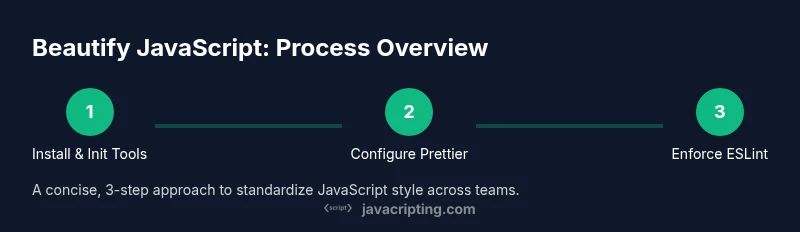
Beautify JavaScript: A Practical Guide to Clean Code
Discover practical techniques to beautify JavaScript code—enhance readability, enforce consistency, and reduce bugs with formatting rules, linting, and editor configurations for teams.


Beautify JavaScript by standardizing formatting, spacing, and style across your project. This guide shows you how to set up automatic formatting, enforce consistent rules with linting, and integrate them into your editor and CI process. By following these steps, you’ll beautify JavaScript consistently, reduce bikeshedding, and improve readability for every developer on the team. This quick-start assumes you have Node.js installed and a basic project to format.
What beautify javascript means in practice
Beauty in code is not about aesthetics alone; it's about consistent, readable JavaScript that other developers can follow without confusion. When teams say they beautify javascript, they usually mean applying a shared style for spacing, line breaks, indentation, and token ordering, so that diff noise is minimized. According to JavaScripting, beauty in code improves onboarding, reduces cognitive load, and speeds up code reviews. In practice, beautify javascript means running a formatter that enforces a shared standard, and pairing it with lint rules that catch edge cases without stifling creativity. In short, a systematic beautification process makes JavaScript easier to read and maintain across modules, functions, and async flows.
Core principles of consistent code styling
A reliable design system for JavaScript style starts with clarity, consistency, and intention. When you beautify javascript, you align indentation, semicolon usage, quote style, and brace placement with a single standard. This reduces the number of decisions developers face on every commit. The goal is not to make every line identical for its own sake, but to ensure that teams can skim, compare, and understand code quickly. Consistency also helps tooling to do its job: prettier can format code, while eslint can warn about deviations that slip through. By focusing on intention and predictability, you create a codebase whose shape tells you what matters, not what style you personally prefer.
Practical tools for beautify javascript
To implement consistent formatting, you can rely on a trio of tools: Prettier for auto-formatting, ESLint to enforce quality and style rules, and EditorConfig to synchronize editor behavior across platforms. Prettier handles whitespace, line breaks, and punctuation consistently, which dramatically reduces debates over style. ESLint adds rules that catch common mistakes and ensure performance best practices stay intact. EditorConfig anchors editor behavior, so different IDEs align with the same baseline. Together, these tools create a reliable foundation for beautify javascript across teams and codebases.
Integrating beautify javascript into teams: patterns and practice
In larger teams, beautify javascript requires buy-in and a clear workflow. Start with a shared configuration file stored at the repo root, and add scripts like npm run format and npm run lint to standardize how code is prepared. Enforce changes via pre-commit hooks or pull request checks, so every contribution respects the agreed style. When reviewers see consistent formatting, they can focus on logic and architecture—this is the essence of beautify javascript at scale. Also consider cross-language consistency if your project touches TypeScript or CSS-in-JS; align these as much as possible with your JavaScript rules.
Troubleshooting: common misalignments and how to fix them
Common issues when beautify javascript arise from conflicting rules or outdated configurations. If Prettier rewrites code unexpectedly, verify that your Prettier config and ESLint rules do not clash; disable conflicting rules in ESLint and run a fresh format. If semicolons or quotes differ across files, adjust the Prettier printWidth or tabWidth to match your team’s conventions. Regularly re-run formatting after large refactors, and document any exceptions in a team style guide to prevent drift.
Authoritative sources and next steps
To deepen understanding, consult official documentation and trusted tutorials. Keep a living guide in your repository that describes how beautify javascript should be applied in your environment, including editor tips and CI integration. This ensures long-term consistency and minimizes debates about style choices.
Tools & Materials
- Node.js (>=14)(Needed to run npm/yarn and tools like Prettier/ESLint)
- npm or yarn(Package manager for installing tooling)
- Prettier(Code formatter to standardize style)
- ESLint(Linter to enforce code quality and style rules)
- EditorConfig(Keeps editor behavior consistent across IDEs)
- .prettierrc(Optional custom Prettier configuration)
- .eslintrc.js(Optional ESLint rules configuration)
- VSCode Prettier extension(Formats on save when enabled)
Steps
Estimated time: 30-60 minutes
- 1
Install and initialize tools
Set up Node.js, initialize a package.json, and install Prettier and ESLint using your package manager. Create basic config files to hold preferences.
Tip: Run npm init -y and npm install --save-dev prettier eslint. - 2
Add Prettier configuration
Create a .prettierrc file with your team’s defaults (printWidth, tabWidth, semi, and quote style).
Tip: Decide a single quote style and stick with it. - 3
Configure ESLint to work with Prettier
Install eslint-config-prettier and eslint-plugin-prettier, then extend and plugin rules so formatting doesn’t clash.
Tip: Put Prettier last in the extends array. - 4
Set up editor formatting on save
Configure your editor to format on save and to respect your .prettierrc and .eslintrc rules.
Tip: Disable conflicting language features that format differently. - 5
Add CI checks
Add a CI step to run npm run format and npm run lint so every PR adheres to the standard.
Tip: Fail builds on formatting or lint errors. - 6
Run format across the project
Execute the formatting tool to apply changes across all JS files and review diffs before commit.
Tip: Use --write for Prettier to apply changes.
Questions & Answers
What does it mean to beautify JavaScript?
Beautifying JavaScript means applying a consistent formatting style so code is easier to read and maintain, without changing its behavior. It involves spacing, indentation, and punctuation decisions that the team agrees on. The goal is to make the codebase feel cohesive when reading across files and modules.
Beautifying JavaScript means making formatting consistent across the codebase without changing how the code runs.
How is beautification different from linting?
Beautification focuses on code appearance and formatting; linting enforces coding standards and catches potential issues. They work together, with formatting handled by a tool like Prettier and quality rules by ESLint.
Beautify handles style; linting checks for quality and correctness.
Which tools are essential for beautify javascript?
The core tools are Prettier for formatting and ESLint for rules. EditorConfig can help keep editor behavior consistent across environments as a bonus.
Prettier formats, ESLint enforces rules, EditorConfig aligns editors.
How do I prevent conflicts between Prettier and ESLint?
Configure ESLint to disable rules that clash with Prettier, or use eslint-config-prettier and eslint-plugin-prettier to harmonize settings.
Disable conflicting rules and use the Prettier integration plugins.
Can I beautify an existing project without rewriting code?
Yes. Start with a non-breaking pass, apply formatting via Prettier, then run linting to catch any missed issues. Review changes in a dedicated PR.
Yes—format gradually and review diffs in PRs.
Should formatting be enforced in CI?
Enforcing formatting in CI ensures consistency across contributors and prevents drift. Include a format and lint step in your pipeline.
Yes, enforce formatting as part of CI checks.
Watch Video
What to Remember
- Define a single formatting standard.
- Install and configure Prettier and ESLint.
- Integrate formatting into editor and CI.
- Resolve tool conflicts with aligned configs.
- Review diffs and evolve style guidelines.