Enable JavaScript in Chrome: A Step-by-Step Guide
Learn how to enable JavaScript in Google Chrome across desktop and mobile, troubleshoot common issues, and optimize settings for safer, faster browsing in 2026.


Goal: enable javascript chrome in Chrome to ensure interactive sites load and function correctly. You’ll learn how to turn on JavaScript globally, manage site-specific permissions, and troubleshoot blockers. This quick setup applies to desktop and mobile Chrome, with practical tips to keep your browser secure while you browse. Follow along for visuals and step-by-step actions.
Why enabling JavaScript in Chrome matters in 2026
JavaScript powers the core interactivity of the modern web. From dynamic menus to embedded widgets, most sites rely on scripts to deliver a usable experience. When JavaScript is blocked, pages may render slowly, fail to respond to clicks, or show only static content. For learners and professionals, enabling JavaScript in Chrome is more than a preference—it’s a baseline requirement for testing, debugging, and building front-end projects. This guide keeps the focus practical, showing you how to adjust global and per-site settings, verify changes, and maintain a safe browsing posture while you explore new features in 2026.
Throughout this article we emphasize actionable steps, clear safety considerations, and quick verification tests so you can see the impact of each change in real time.
Global vs site-specific settings in Chrome
Chrome provides both a global default for JavaScript behavior and granular site-specific controls. Global settings apply across all sites, while per-site rules let you allow or block scripts for individual domains. This separation matters because you can keep riskier sites restricted while allowing essential scripts on trusted ones. The Site Settings panel—under Privacy and security—lets you switch between Allow and Block states, and you can add exceptions as needed. When a page requests scripts, consider whether the site’s credibility and data policy justify broader script access. This approach balances usability with security and reduces surprises when a page looks odd or behaves strangely.
Desktop vs mobile: understanding differences
The Chrome engines are shared across platforms, but the path to JavaScript controls differs. On desktop, you’ll typically find JavaScript under Settings > Privacy and security > Site Settings > JavaScript. On Android, the menu paths resemble the desktop flow but may appear with slightly different labels. iOS devices running Chrome use the iOS WebKit layer, which inherits similar JavaScript permissions from the system, even though you launch Chrome as an app. In practice, you’ll manage global and site-specific JavaScript allowances on each device, ensuring consistency for responsive testing and cross-device development.
Desktop: how to enable JavaScript globally (desktop)
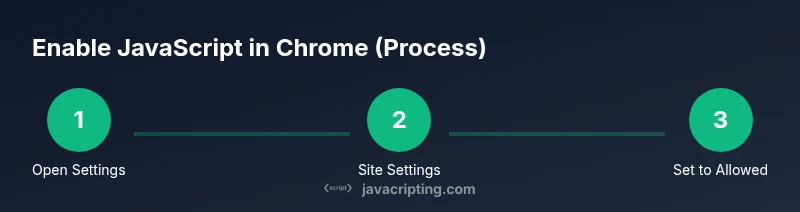
To enable JavaScript globally in Chrome on a desktop, open the browser menu (three dots) and navigate to Settings. From there, go to Privacy and security, then Site Settings, and finally JavaScript. Set JavaScript to Allowed to enable it for all sites. If you previously blocked it on some domains, you’ll see prompts on those sites requesting permission; you can approve or disable prompts for those sites individually. After applying the change, reload sites to confirm that scripts execute. If your organization uses device management, note that administrators may enforce restrictions; in that case, consult your IT policy before changing settings.
Desktop: how to allow JavaScript for specific sites
If you prefer not to enable JavaScript globally, you can build an Allow list for trusted sites. In Site Settings, open JavaScript, then add domains to the Allow list. You can remove sites later to revoke permissions. This approach preserves usability for known sites while limiting exposure to unfamiliar pages. After updating, refresh the sites on your list to ensure interactive features load correctly and that pages render as intended.
Troubleshooting common issues when JavaScript won't run
If scripts still don’t execute after enabling, start with a quick check of extensions. Some ad blockers or privacy tools block scripts and can override your browser settings. Temporarily disable extensions and reload the page to see if the behavior changes. Clear your cache if stale data is causing scripts to fail, and try an Incognito/Private window to isolate the issue from extensions. If a site still fails, open DevTools (Ctrl/Cmd+Shift+I) and inspect the Console for errors pointing to blocked or failing scripts.
Using DevTools to diagnose JavaScript problems
DevTools provides real-time feedback on script load and execution. Open the Console to view errors and warnings, the Network tab to inspect script requests, and the Sources tab to locate script files. Practice with a simple test page that includes a few scripts and observe how enabling or blocking JavaScript changes network activity and page behavior. This hands-on approach makes it easier to differentiate between syntax errors and permission-related issues.
Best practices for security, performance, and UX
Enable JavaScript thoughtfully: only allow scripts that are necessary for core site functionality. Keep Chrome updated to benefit from the latest security patches and performance improvements. Favor site-specific permissions over blanket allowances to reduce risk while maintaining a smooth user experience. Remember that third-party scripts can impact load times; test changes with representative pages and monitor performance metrics. If you notice unusual behavior after a change, revert and re-test.
Final checks and quick verification tests
Conclude by visiting a test page that relies on scripting to confirm the change took effect. Use both a trusted site and a test page you control to compare behavior. If scripts run smoothly on desktop, repeat the same steps on your mobile device to ensure parity. Document any differences and adjust site-specific rules accordingly. Regularly review permissions after major Chrome updates or when introducing new extensions.
Tools & Materials
- Computer with Google Chrome installed(Use the latest stable channel for accurate steps)
- Stable internet connection(Essential for accessing settings and testing pages)
- Test pages or a site you own(A known site helps verify the change)
- Phone or tablet for mobile testing(Optional but recommended)
Steps
Estimated time: 8-12 minutes
- 1
Open Chrome settings
Click the three-dot menu in the top-right corner and choose Settings. This opens the central control panel for browser behavior, including content settings for JavaScript. Confirm you are using the correct Chrome profile if multiple users share the device.
Tip: If you can't locate Settings, try pressing Ctrl+S (Cmd+S on Mac) to open the menu quickly. - 2
Navigate to Site Settings
In Settings, select Privacy and security, then Site Settings. This panel aggregates all content permissions, including JavaScript controls at a glance. Take a moment to scan the list of other permissions you might adjust later.
Tip: If Site Settings isn’t visible, use the search bar at the top of Settings and type 'JavaScript'. - 3
Set JavaScript to Allowed
Click JavaScript and choose Allowed to enable it for all sites. This is the global setting that ensures scripts run by default. Some sites may still prompt for permission if you’ve previously blocked them.
Tip: After changing, refresh a test page to confirm scripts execute without prompts. - 4
Add site exceptions
If you prefer selective permissions, add trusted domains to the Allow list. Enter the site URL and confirm. This keeps risky sites restricted while enabling functionality on trusted pages.
Tip: Double-check the exact domain; a .com vs. a subdomain difference can change behavior. - 5
Verify with a test page
Visit a page known to rely on JavaScript, such as a demo page or a project you’re testing. Confirm that dynamic features load and respond as intended. If not, re-check the site’s URL and permissions.
Tip: Use a page with a known interactive element (like a menu or modal) to quick-verify. - 6
Check extensions
Some extensions can block scripts despite your settings. Disable extensions briefly and reload the page to see if behavior changes. Re-enable them one by one to identify the culprit.
Tip: Pay special attention to ad blockers and privacy-focused add-ons. - 7
Clear cache and update
Clear your browser cache if stale files block scripts. Ensure Chrome is up to date to benefit from security and compatibility improvements. After updates, re-test the affected sites.
Tip: Clear only cache to preserve other stored data when possible. - 8
Test on mobile
Open Chrome on your mobile device and repeat the same steps for JavaScript permissions. Mobile behavior can differ slightly, so verify functionality across devices for consistent results.
Tip: If you rely on mobile testing for responsive projects, bookmark the test page for quick access.
Questions & Answers
Where is the JavaScript setting in Chrome?
In Chrome, go to Settings > Privacy and security > Site Settings > JavaScript. Here you can allow or block JavaScript globally or per site.
Go to Chrome Settings, then Site Settings, and enable JavaScript for all sites or specific ones.
Can I disable JavaScript entirely?
Yes, you can block all scripts, but most sites will lose essential functionality. Consider using per-site controls for a safer browsing experience.
You can block all scripts, but it will break many sites; use per-site controls instead.
Will enabling JavaScript affect security?
JavaScript is essential for modern sites, but it can introduce risks if misused by malicious scripts. Keep Chrome updated and review permissions regularly.
JS is needed but come with risks; keep Chrome updated and monitor site permissions.
Why does a page request permission to run scripts?
Some sites require permission for scripts to protect user privacy. The prompt lets you decide per site whether scripts can run.
Sites may ask permission to run scripts; you decide per site.
Is JavaScript enabled by default on Chrome?
Yes, most Chrome installations enable JavaScript by default. If you’ve changed settings previously, you may need to re-enable it for targeted sites.
JS is normally enabled by default; re-check if you’ve customized settings.
Does this differ on mobile Chrome?
The core behavior is similar on mobile, but path labels and menus differ. Use Settings > Site Settings > JavaScript on mobile to manage global and per-site permissions.
Mobile Chrome uses a parallel process; adjust JS under Site Settings there too.
Watch Video
What to Remember
- Enable JavaScript globally for full site functionality
- Manage site exceptions to balance usability and security
- Test changes with reliable test pages
- Keep Chrome updated for best compatibility