How to Disable JavaScript in Tor: A Practical Guide
Learn how to disable JavaScript in Tor Browser to reduce fingerprinting and boost privacy. This guide provides steps, testing tips, and per-site controls for safer browsing with a focus on practical, privacy-first configurations.


By the end of this guide, you will configure Tor Browser to block or restrict JavaScript, reducing fingerprinting and improving privacy. You can achieve this by using the built-in NoScript controls or by switching the browser’s security level to Safest. Expect some sites to degrade in functionality until you re-enable scripts per-site.
Why disabling JavaScript in Tor matters
According to JavaScripting, reducing JavaScript exposure is a practical step toward stronger online privacy. When scripts run, websites can collect more data about you and attempt fingerprinting. In the Tor Browser environment, limiting script execution further narrows the fingerprint metrics that sites can use to identify you. This approach is particularly valuable when privacy is a priority, such as while researching sensitive topics or testing new configurations. Of course, some features rely on JavaScript, so you’ll sometimes trade convenience for anonymity. The key is to balance risk with your browsing goals and maintain awareness of how changes affect site behavior.
Understanding Tor Browser protections
Tor Browser bundles Firefox with NoScript and built-in protections designed to limit script execution. The security levels (Standard, Safer, Safest) let you choose how aggressively scripts are allowed. NoScript provides granular control: you can block all scripts globally or permit them on trusted sites. Using Safest often disables most scripts by default, dramatically reducing fingerprinting risk, but it can break some pages that rely on client-side code. Learn how these settings interact to shape your browsing experience.
Step-by-step: Disabling JavaScript in Tor Browser
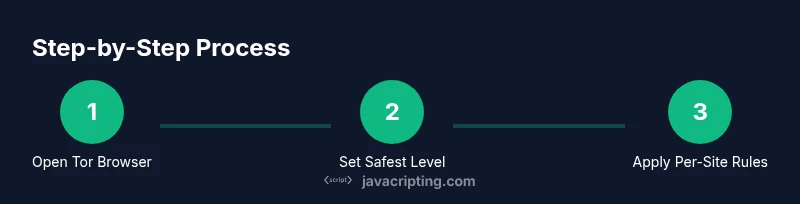
Disabling JavaScript in Tor requires adjusting the browser’s protection level and managing site-specific permissions. Start by opening Tor Browser and locating the protection controls. Then, set the global level to Safest for the broadest protection, and fine-tune per-site rules as needed. After changes, re-test key sites to confirm functionality and privacy improvements. Remember, updates to Tor Browser can alter these settings, so re-check periodically or after upgrades.
Granular control: per-site rules
A common strategy is to keep JavaScript blocked globally and allow it only for trusted domains. Use the per-site controls to mark websites you trust as exceptions, while maintaining strict policy elsewhere. This approach preserves privacy on unknown sites while enabling essential functionality on your go-to services. Always review a site’s legitimacy before enabling scripts to avoid leaking data to malicious actors.
Testing your changes
Verification is essential: visit a handful of sites with known script-heavy features and observe how they behave after you make changes. Use sites that historically require client-side scripts and compare behavior with the Safest setting on vs off. If something essential stops working, adjust the per-site rules or temporarily revert to Safer while keeping global protection intact. Documentation of your tests helps you reproduce a stable setup.
Impact on performance and usability
Disabling JavaScript can noticeably improve privacy by reducing tracking vectors, but it may degrade usability on some sites. Layouts can break, interactive widgets may disappear, and some forms won’t submit as expected. Weigh the privacy gains against daily workflow needs, and consider a tiered approach: keep Safest as the default and selectively enable scripts for trusted sites when necessary.
Safety tips and potential pitfalls
Be aware that some sites rely heavily on client-side scripts for essential features. Before turning off JavaScript globally, sketch a quick list of sites you trust and understand how their functionality will be affected. Refrain from sharing sensitive credentials on pages that block standard protections, and keep your Tor Browser up to date to benefit from the latest privacy improvements. If you notice consistent breakage on important sites, switch to per-site exceptions rather than global changes.
Re-enabling JavaScript: when and how
There are times when you might want to re-enable JavaScript temporarily or permanently. If you frequently encounter sites that require scripts, switch back to Safer or Standard level after completing a private task. You can also restore default settings from the safeguards panel and review per-site rules to maintain a balance between security and usability.
Tools & Materials
- Tor Browser(Download from official Tor Project site and verify signature before use)
- Stable internet connection(Helpful for testing changes without interruption)
- Privacy-focused notes(Keep a quick reference of sites where you allow scripts)
Steps
Estimated time: 5-15 minutes
- 1
Open Tor Browser and locate protection controls
Launch Tor Browser and confirm you’re connected to the Tor network. In the address bar, locate the shield icon or the protection controls. This is where you adjust how JavaScript is handled through the built-in protections.
Tip: If you can’t find the shield icon, access the menu (three bars) and search for Security or NoScript options. - 2
Set Security Level to Safest
Click the shield icon and select the Safest level. This policy blocks most scripts by default, significantly reducing fingerprinting. You may need to reload pages after changing levels.
Tip: Expect some pages to fail to load; plan to switch back to a lower level for a particular site if needed. - 3
Verify JavaScript is blocked on a test site
Visit a site you know uses scripts heavily and observe whether interactive features run. If scripts still execute, revisit the security level or NoScript controls to tighten or adjust per-site rules.
Tip: Open a new tab and compare behavior to ensure changes are active. - 4
Enable per-site controls for trusted sites
For sites you trust, configure exceptions rather than a global turn-off. Use the per-site controls to allow scripts only on those domains. This keeps strong protections elsewhere while preserving needed functionality on trusted sites.
Tip: Limit exceptions to domains you actively use and verify they are legitimate. - 5
Re-test and refine per-site rules
Reload pages after applying per-site rules and test essential features. If something breaks, adjust the exception or temporarily disable it to assess impact.
Tip: Maintain a small list of trusted sites to streamline future testing. - 6
Keep Tor Browser updated and re-check settings
Updates can alter protections or reset preferences. After an update, re-verify your preferred level and per-site rules to keep your privacy posture intact.
Tip: Set a calendar reminder to re-check settings after major updates. - 7
Document and maintain your setup
Record the exact settings you use and note any site-specific exceptions. Documentation helps you reproduce a consistent, privacy-focused browsing environment across sessions.
Tip: Create a quick reference guide for future you or teammates.
Questions & Answers
What does disabling JavaScript in Tor Browser do?
Disabling JavaScript reduces the amount of client-side code that can collect data or fingerprint your browser. It increases privacy and lowers risk from malicious scripts, but may break site functionality.
Disabling JavaScript reduces data collection and fingerprinting, improving privacy, though some sites may not work fully.
Can I disable JavaScript per-site in Tor Browser?
Yes. Use the per-site controls to allow or block scripts for specific domains while keeping strict protections elsewhere.
Yes, you can selectively enable scripts for trusted sites using per-site controls.
Will disabling JavaScript break websites while using Tor?
Many sites rely on JavaScript for core features. Expect some breakage, and prepare to re-enable scripts on trusted sites as needed.
Some sites will lose features when JS is off; you may re-enable it for trusted sites.
Is it safe to modify Tor Browser's security levels?
Adjusting security levels is a normal part of privacy tuning. Re-test after updates and maintain a per-site strategy to minimize breakage.
Adjusting levels is generally safe; re-test after updates and tailor per-site rules.
How do I re-enable JavaScript after disabling it?
Switch the security level to Safer or Standard, or remove per-site exceptions. Re-test important sites to confirm expected behavior.
Switch levels back or remove exceptions, then test key sites.
Does disabling JavaScript affect Tor's anonymity?
Disabling JavaScript can reduce fingerprinting risk, but it does not change the fundamental anonymity guarantees of Tor. Always stay aware of fingerprinting risks and browser updates.
It lowers fingerprinting risk but doesn't alter Tor's core anonymity; stay updated on protections.
Watch Video
What to Remember
- Disable JavaScript globally for higher privacy
- Utilize per-site rules to balance usability
- Test changes and monitor site behavior
- Stay updated with Tor Browser security features