How to Format JavaScript: A Practical Guide for Clean Code
Learn how to format JavaScript consistently with style guides, automated tooling, and team-friendly workflows. This guide covers choosing a style, configuring Prettier and ESLint, editor integration, and enforcing rules in CI, with practical examples and tips.


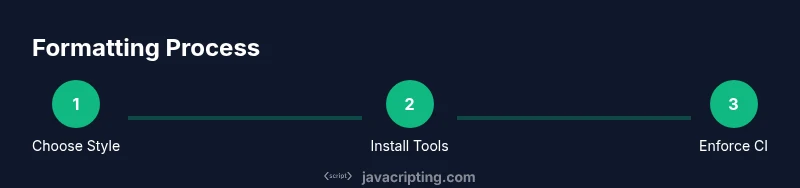
By the end, you will know exactly how to format JavaScript consistently across your codebase, ensuring readability and maintainability. This guide explains how to choose a formatting style, set up Prettier and ESLint, integrate formatters with your editor and CI, and enforce rules with clear examples. You'll also see practical pitfalls to avoid and how to adopt a team-standard workflow.
Why Formatting JavaScript Matters
How you format JavaScript impacts readability, onboarding speed, and collaboration. If you’re asking how to format javascript, this guide will walk you through practical techniques that reduce cognitive load and minimize debate during code reviews. A consistent style makes it easier to scan logic, spot bugs, and understand intent across modules. Beyond aesthetics, formatting enforces predictable patterns that teammates can rely on, shortening feedback loops and speeding up shipping. According to JavaScripting, disciplined formatting also lowers the barrier for new contributors, helping you scale projects more smoothly. In addition to readability, consistent formatting supports tooling assumptions, such as static analysis and automated testing, which depend on stable code patterns to deliver reliable results. As you read, keep in mind that formatting is not a strict rulebook but a shared convention that improves collaboration and code health over time.
Tips & Context
- Use a recognizable style for indentation and line length to reduce cognitive load.
- Treat formatting as a team contract that your CI enforces, not a personal preference.
- Balance strictness with practical readability; overly long lines can hurt clarity.
noteWordCountType as guidance
Tools & Materials
- Editor with formatting integration (e.g., VS Code)(Enable format-on-save and per-project settings.)
- Node.js installed(Used by formatters and lint tools.)
- Prettier formatter(Core tool for consistent code style.)
- ESLint with recommended rules(Enforces and optionally fixes code quality.)
- .prettierrc and .eslintrc.json config files(Project-wide formatting and linting rules.)
- Git hook manager (e.g., Husky)(Run formatter on commits.)
- CI integration (optional)(Ensure formatting passes in CI before merging.)
Steps
Estimated time: 60-120 minutes
- 1
Define your formatting goals
Identify the main reasons for formatting in your team: consistency, readability, tooling compatibility, and CI expectations. Document a short, shared rationale so everyone understands the purpose of the rules before defaults are set.
Tip: Start with a small, concrete rule set (e.g., 2-space indentation, 80–100 character lines) to test how it impacts your codebase. - 2
Choose a primary style guide
Select a baseline style guide that matches your project needs (Airbnb, Google, Standard, or a custom policy). Align the choice with your team’s preferences and existing code. This decision will anchor all formatter and linter configurations.
Tip: Avoid mixing multiple large style guides in one project; consolidate into a single standard. - 3
Install and configure core tools
Install Prettier and ESLint, then create config files (.prettierrc and .eslintrc.json) that reflect the chosen style. Ensure both tools don’t contradict each other by using compatible rules and overrides.
Tip: Run initial installs in a clean environment to surface conflicting rules early. - 4
Integrate formatting into your editor
Enable format-on-save and assign a shortcut to reformat on demand. Ensure the editor’s language server respects the project config so automatic edits align with the team standard.
Tip: Test with a representative code sample to verify proper alignment. - 5
Configure a formatter/formatter combo
Configure Prettier as the primary formatter and ESLint to catch logical issues, with ESLint’s --fix option enabled where safe. Use a formatter plugin to automatically apply Prettier rules during edits.
Tip: Lock formatter behavior in editor settings to prevent drift between editors. - 6
Set up project-wide rules
Add a shared .prettierrc.json and .eslintrc.json, plus any necessary overrides for specific file types. Document exceptions and how to handle them in reviews.
Tip: Version-control your config files to avoid drift across environments. - 7
Enforce via CI and pre-commit hooks
Add a pre-commit hook that runs the formatter and linter, and a CI step that fails on formatting violations. This ensures consistency before code is merged.
Tip: Automated checks dramatically reduce manual review time. - 8
Educate the team and iteratively improve
Provide a short onboarding guide and example diffs showing before/after formatting. Plan periodic reviews of the rules as the codebase evolves.
Tip: Treat formatting rules as living policies: adjust with consensus, not ad-hoc changes.
Questions & Answers
What is code formatting and why does it matter for JavaScript?
Code formatting is a set of rules that define how code appears (indentation, spacing, line length, etc.). For JavaScript, consistent formatting improves readability, reduces cognitive load, and speeds up reviews. It also enables reliable automated tooling and standardized collaboration.
Code formatting defines how code looks; in JavaScript it helps teams read and review code faster.
Should I use Prettier, ESLint, or both for formatting?
Use Prettier as the primary code formatter to enforce stylistic rules, and ESLint to catch logical issues. ESLint can run with --fix for some formatting, but Prettier should drive the aesthetic formatting to avoid conflicts.
Choose Prettier for formatting, ESLint for correctness, and let them work together.
Can I customize formatting rules for specific files or projects?
Yes. Most teams configure overrides for language features, test files, or generated code. Document these exceptions and ensure the CI enforces them to prevent drift.
Yes—use overrides and document them so everyone follows the same exceptions.
What should I do about inline formatting in templates or literals?
Inline formatting in templates is common but should follow the same base rules. You may disable specific rules in limited cases with clear documentation.
Follow your standard rules, and only override when necessary with documented justification.
How often should formatting rules be reviewed?
Review rules at least every 6–12 months or when the codebase shifts significantly, such as new frameworks or major refactors. This keeps the policy relevant and practical.
Check your rules periodically to keep them effective with changing codebases.
Watch Video
What to Remember
- Format code with a single standard to reduce debates.
- Automate formatting to keep a clean diff and faster reviews.
- Integrate tools into editor and CI for consistency.
- Review rules periodically as the project evolves.