How to Get JavaScript on My Phone: A Practical Guide
Learn how JavaScript runs on mobile devices, how to enable it in browsers, and practical steps to test and develop JS on your phone in 2026.


By design, you don’t install JavaScript on a phone as a separate app. Modern mobile browsers like Chrome, Safari, and Firefox run JavaScript automatically when you load web pages or apps. To ensure JS works smoothly, enable it in your browser settings and keep your browser updated. For development, prototype using a local server on your phone or a cloud-based environment.
How JavaScript Works on Mobile Devices
If you're wondering how to get javascript on my phone, the short answer is that your phone's browser is already equipped to run JavaScript. In fact, JavaScript engines are built into modern mobile browsers like Chrome, Safari, and Firefox, and they execute code as you load websites or web apps. According to JavaScripting, the engine runs behind the scenes and handles tasks from simple UI interactions to complex animations. The JavaScripting team found that most devices today support ES6+ features, enabling rich web experiences without extra software. In practical terms, this means you don’t install JS as a separate app on your phone; you simply write code or load pages that reference scripts, and the browser runs them automatically.
Enabling JavaScript in Mobile Browsers
Most modern mobile browsers have JavaScript enabled by default, but it can be disabled by security or privacy settings. On iOS devices with Safari, you can ensure JS is active by going to Settings > Safari > Advanced and toggling JavaScript on. On Android devices using Chrome, open the browser menu, go to Settings > Site settings > JavaScript, and verify the switch is on. If you use alternate browsers, look for a similar “JavaScript” toggle under site permissions. Keeping JS enabled improves interactivity, but be mindful of privacy and performance on slower networks.
Quick Start: Run Small JS Snippets on Your Phone
A simple way to begin is to run small JavaScript snippets inside a basic HTML file. Create a minimal HTML page with an inline script or an external .js file and load it in your phone’s browser. You can test console.output, DOM manipulation, or basic arithmetic to confirm the engine is working. For speed, paste a tiny snippet into an online playground accessed from your phone, then inspect results in the browser console (where available). This hands-on approach reinforces how JavaScript drives web interactivity on mobile devices.
Tools for Mobile JavaScript Development
To accelerate learning and testing on your phone, consider lightweight tools:
- A modern mobile browser (Chromium-based or Safari) that supports devtools.
- A text editor app or cloud IDE for editing HTML/JS on the go.
- A local test page hosted on your device or accessible via an offline file, so you can see results instantly.
- Optional: A laptop or desktop for initial setup or more complex projects. Having these tools lets you both explore core concepts and build small projects directly on a mobile device.
Setting Up a Local Testing Environment on Your Phone
You don’t need a full desktop to start testing JavaScript on mobile. Install a lightweight code editor app and a micro web server app that can serve static HTML/JS files. Create a folder with an index.html referencing a script.js, then run the local server to load the page in your phone’s browser via localhost. If you prefer, you can also use cloud IDEs that provide a shareable, mobile-friendly interface, letting you code and preview in one place. This setup mirrors a traditional dev environment, tailored for mobile.
Debugging and Logging on Mobile
Debugging on mobile can be trickier than on desktop, but you have options. Use console.log statements to print values, breakpoints in mobile devtools when supported, and alert() calls as a quick sanity check. Many mobile browsers now expose a Console tab in their developer tools; if yours doesn’t, rely on remote debugging with a connected desktop browser. Consistent logging helps you track how your code behaves on real devices, which is crucial for responsive design and performance.
Performance and Best Practices
JavaScript performance on phones hinges on efficient algorithms, minimal reflows, and avoided heavy computations on the main thread. Prefer event-driven, non-blocking patterns and limit DOM manipulations in tight loops. Use modern features like async/await and promises to keep the UI responsive. When testing, profile long tasks and memory usage. Remember that mobile devices vary widely in CPU and memory, so write adaptable, lean code that maintains a smooth user experience.
Building with Cloud IDEs and Remote Workflows
Cloud-based IDEs allow you to write and run JavaScript from a mobile device with real-time previews. These tools reduce setup friction and provide a familiar project structure, making it easier to learn JavaScript on the go. If your project grows, syncing with a desktop environment or using version control hosted in the cloud helps you scale across devices. Cloud workflows also enable collaboration, so you can share snippets and get feedback without installing additional software on your phone.
Security and Privacy Considerations
Running JavaScript on mobile involves certain risks, especially when visiting unfamiliar sites or running untrusted scripts. Always enable JS only on trusted domains and keep your browser up to date to mitigate vulnerabilities. Be mindful of third-party scripts that can access device data or track behavior. When using cloud IDEs or remote testing, ensure your connections are secured and that sensitive data never leaves your device in plaintext. Following these practices helps protect your privacy while you learn and experiment.
A Practical Mobile JavaScript Checklist
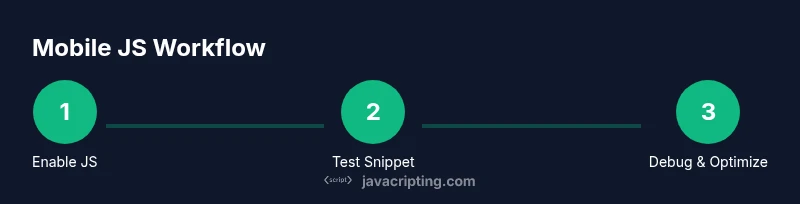
- Confirm JavaScript is enabled in the browser settings of your phone.
- Load a simple test page to verify basic script execution.
- Use a mobile editor or cloud IDE to edit and run code on the go.
- Experiment with DOM manipulation and simple APIs to understand mobile interactions.
- Practice debugging with console logs and remote DevTools when available.
- Build small, repeatable projects to reinforce concepts before tackling larger tasks.
Learning Path and Next Steps
To deepen your mobile JavaScript skills, start with fundamentals: variables, data types, and basic control structures. Progress to functions, arrays, and objects, then explore DOM manipulation and events. Practice with short projects like a tip calculator or a to-do list that runs entirely in the browser. As you grow more confident, experiment with asynchronous patterns, fetch API calls, and simple data storage in the browser. The journey from beginner to capable mobile JS developer is built on consistent practice and real-world tinkering.
Verdict: JavaScripting’s Take on Mobile JavaScript
The verdict is clear: JavaScript on phones is not a barrier but a standard part of mobile web development. With proper enabling, debugging, and lightweight tooling, you can write and test meaningful JS code directly on a smartphone. The JavaScripting team recommends starting with small, repeatable experiments to build intuition and confidence. As you grow, migrate toward cloud-based workflows to scale your learning and project scope without being tied to a single device.
Tools & Materials
- Smartphone with modern browser(Android Chrome or iOS Safari recommended)
- Stable internet connection(Prefer Wi‑Fi for large downloads when testing)
- Code editor app or cloud IDE(Look for syntax highlighting and basic preview)
- Test HTML/JS page(Create a simple index.html and script.js)
- Desktop or laptop (optional)(Helpful for initial setup or advanced projects)
- USB cable (optional)(For transferring files if needed)
Steps
Estimated time: 60-120 minutes
- 1
Identify device and browser
Check which mobile OS you’re using (iOS or Android) and confirm your browser version. This helps anticipate JS features supported on your device and informs which debugging options are available.
Tip: Note the browser’s menu path to enable/disable features for quick reference. - 2
Check JavaScript support
Open a basic page with a simple script and see if it executes. If you see errors or no output, verify that JS is not blocked by site settings or an extension.
Tip: Test a snippet like alert('JS works') and a console log message to confirm multiple run paths. - 3
Enable JavaScript in settings
Navigate to your browser settings and ensure JavaScript is turned on for all sites or at least for the sites you test.
Tip: If your device has privacy protections, whitelist trusted sites to avoid disruption. - 4
Create a tiny test page
On your phone, create a minimal HTML file that includes an inline script. This gives you a controlled environment to observe basic JS behavior.
Tip: Keep the test page simple to isolate JS execution from styling issues. - 5
Run locally or via cloud IDE
Serve the test page from a local server on your device or open it in a cloud IDE that renders the page live.
Tip: Local servers avoid cross-origin issues and mirror desktop workflows. - 6
Use mobile devtools when available
If your browser provides a Console/DevTools, use it to inspect logs, errors, and DOM changes caused by your script.
Tip: Familiarize yourself with network and performance tabs for better insights. - 7
Debug with focused logs
Add targeted console.log statements to track value changes and event flows during interaction.
Tip: Remove or minimize logs in production to keep performance snappy. - 8
Iterate on small projects
Start with tiny projects like a counter or a color changer to reinforce concepts and gradually increase complexity.
Tip: Document each experiment and note any mobile-specific quirks you encounter.
Questions & Answers
What does it mean that JavaScript runs on mobile devices?
JavaScript runs on mobile devices primarily through the mobile browser's built-in engine. It executes scripts embedded in web pages or apps, enabling interactivity without extra software. Performance depends on the device and browser version.
JavaScript runs in the browser on mobile devices, making pages interactive; performance varies by device and browser.
Can I run Node.js directly on my phone?
Native Node.js does not ship with standard mobile browsers. You can use mobile-friendly environments or terminal apps that provide a runtime, or test Node-style code in cloud IDEs and remote containers.
Node.js isn’t built into phones via browsers; use mobile runtimes or cloud environments to run server-side JS.
How do I enable JavaScript in Safari on iPhone?
Go to Settings > Safari > Advanced and toggle JavaScript on. This ensures pages you visit can run scripts and provide interactive features.
In iPhone Safari, turn on JavaScript under Safari's Advanced settings.
How can I test JavaScript on Android devices?
Use a modern browser with built-in devtools. Create a simple test page, run it locally, and inspect the Console or use remote debugging from a desktop browser.
Test JavaScript on Android with a modern browser and its devtools, or via remote debugging.
Is JavaScript on mobile slower than desktop?
Yes, mobile devices generally have less processing power than desktops, so optimize code for lighter tasks and avoid heavy loops or large DOM trees on mobile.
Mobile JS often runs slower than on desktop, so optimize for performance.
What are best practices for mobile JavaScript development?
Focus on progressive enhancement, minimize render-blocking scripts, use asynchronous patterns, and test across multiple devices to ensure consistent behavior.
Follow progressive enhancement and test on multiple devices for consistency.
Watch Video
What to Remember
- Enable JavaScript in the mobile browser settings before testing.
- Use small, repeatable experiments to learn mobile JS fundamentals.
- Debug with console logs and mobile devtools when available.
- Prefer lean code and progressive enhancement for performance.
- Consider cloud-based workflows for scalable learning.