How to Include JavaScript: A Practical Guide
Learn how to include JavaScript on web pages and apps with inline, external, module, and bundler approaches. This practical guide covers loading order, performance, security, debugging, and real-world examples for aspiring developers.


Goal: Learn how to include javascript on web pages and apps by selecting the right method (inline, external, module, or a bundler), placing scripts for optimal load order, and applying practical best practices for performance, security, and accessibility. You’ll see concrete examples, common pitfalls, and testing steps to ensure reliable execution across browsers and environments.
What it means to include JavaScript
Including JavaScript on a web page is the process of delivering code that runs in the browser to add interactivity, fetch data, and enhance user experience. The phrase how to include javascript describes options for embedding code directly in the HTML, loading it from external files, or loading as module scripts for modern JavaScript. Each method has trade-offs in performance, caching, and maintainability. In practice, you’ll decide based on project size, browser targets, and deployment workflow. This article assumes a focus on client-side inclusion in standard web pages, with notes for server-side contexts where relevant. By the end, you’ll understand when to pick each method and how to implement it cleanly while keeping accessibility and performance in mind. According to JavaScripting, adopting a deliberate inclusion strategy from the start reduces debugging time and improves long-term maintainability.
note
Tools & Materials
- Text editor(VS Code, Sublime Text, or equivalent)
- Web browser(Chrome/Edge/Firefox for testing)
- Local server(Node.js with http-server or similar)
- Sample HTML file(Base HTML skeleton to host scripts)
- JavaScript file(s)(External script (e.g., script.js))
- Optional bundler/npm setup(For production workflows (e.g., Vite, Webpack))
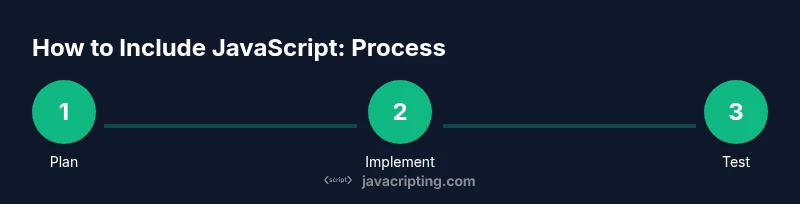
Steps
Estimated time: 1-2 hours
- 1
Plan your inclusion method
Determine whether you’ll start with inline scripts for small demos, an external file for maintainability, or a module script for modern JS in browsers that support ES modules. Clarify when and where scripts should load to avoid blocking rendering. A clear plan reduces rework later and helps you scale as projects grow.
Tip: Write down your chosen method and 2-3 fallback considerations before touching code. - 2
Create a basic HTML skeleton
Set up a minimal HTML document with a head and body. Include a placeholder for your script and a simple element to interact with (e.g., a button). This establishes a stable base for incremental additions and debugging.
Tip: Ensure the document has a proper doctype and meta charset for consistent rendering. - 3
Add an inline demo script
Place a small script between script tags in the HTML to verify your environment and basic interaction. Inline scripts are useful for quick demos but should be minimized in production for maintainability and caching reasons.
Tip: Keep inline scripts small and focused; avoid complex logic here. - 4
Move to an external JavaScript file
Create a separate JS file (e.g., script.js) and reference it via the script tag with a src attribute. External files improve caching and organization, and are easier to test across pages.
Tip: Use a descriptive filename and organize scripts by feature or page. - 5
Switch to module scripts when appropriate
If you plan to use modern ES modules, set type="module" on the script tag and import from other modules as needed. Modules enable import/export syntax and better scope management, but require browser support checks and proper CORS handling.
Tip: Provide a non-module fallback for older browsers if needed. - 6
Decide between defer and async
Choose defer to preserve order and execute after the document has parsed, or async to load independently. The choice affects when your code runs relative to HTML parsing and other scripts.
Tip: For most UI scripts that rely on DOM, defer is a safer default. - 7
Consider CDN vs local hosting
Loading scripts from a CDN can speed up delivery and caching across sites, but local hosting gives you more control and reliability in offline environments. Weigh availability, privacy, and CSP implications when choosing.
Tip: If using a CDN, lock to a specific version to avoid unexpected updates. - 8
Test across browsers and devices
Test simple interactions on multiple browsers and mobile devices. Check console errors, network timings, and fallback behavior if JavaScript is blocked or fails to load. Tools like devtools network throttling help simulate real conditions.
Tip: Enable strict mode during development to catch common mistakes early. - 9
Optimize for production with bundlers
For larger projects, use a bundler or build tool to optimize and combine scripts, minify code, and manage dependencies. This improves load times and caching efficiency while keeping your source code organized.
Tip: Start with a simple setup (e.g., Vite) and iterate as features grow.
Questions & Answers
What is the difference between inline and external scripts?
Inline scripts run immediately where placed in the HTML, but they block parsing and are harder to cache. External scripts remain in separate files, improve caching, reuse across pages, and maintain separation of concerns.
Inline scripts run where placed, but external scripts are easier to maintain and cache.
When should I use defer or async?
Use defer when script order matters and you want scripts to run after parsing. Use async for independent scripts that do not rely on the DOM or other scripts. Both options help improve page load performance.
Defer preserves order and runs after parsing; async runs as soon as it loads.
Can I load JavaScript from a CDN?
Yes, CDNs can speed delivery and improve cache hits across sites, but you should pin to specific versions and consider integrity checks and CSP guidance.
CDNs can be fast, but fix the version and security checks.
How do I ensure my script loads securely?
Use a strict Content Security Policy, Subresource Integrity where possible, and avoid loading untrusted code. Validate inputs and minimize inline scripts to reduce attack surfaces.
Apply CSP, SRI, and keep inline scripts minimal.
Why isn’t my script executing?
Common causes include syntax errors, incorrect file paths, blocked resources due to CSP, or scripts executing before the DOM is ready. Check the browser console and network tab for clues.
Check for errors in console and confirm file paths and DOM readiness.
Watch Video
What to Remember
- Plan inclusion strategy before coding
- Prefer external scripts for maintainability
- Use module scripts for modern JS when supported
- Test across browsers and devices
- Secure and optimize script loading for performance