Where to Input JavaScript: A Practical Guide
Learn where to input JavaScript on web pages, including inline scripts, external files, and module scripts. Practical guidance for beginners and pros on performance, security, and maintainability.


Where to input javascript determines how your code runs, how easy it is to maintain, and how securely you deploy a webpage. In this guide you’ll learn inline in HTML, external files, and modern module scripts, plus when each option is appropriate and how to avoid common pitfalls. By the end you’ll know practical rules for every project.
where to input javascript
If you're building a web page with JavaScript, choosing where to input javascript is a foundational decision that affects load time, cacheability, and maintainability. The phrase where to input javascript guides how you structure your project, how you organize your code, and how you enforce consistent practices across teams. In this section, you’ll see the major locations and the rationale behind each choice, from tiny prototypes to full-scale apps. This is not only about syntax—it's about workflow, performance, and long-term reliability. As you read, keep in mind that the best location often depends on your page’s complexity, your deployment pipeline, and your security posture.
According to JavaScripting, practical patterns balance speed and clarity. For small, one-off behaviors, inline code near the end of the body can be convenient. For larger projects, external files kept separate from HTML improve caching and reuse. For modern tooling and distributed teams, modules provide clear boundaries and predictable import semantics. The recommendations below help you apply these ideas to real projects, from a simple static page to a dynamic web app.
Core placement options
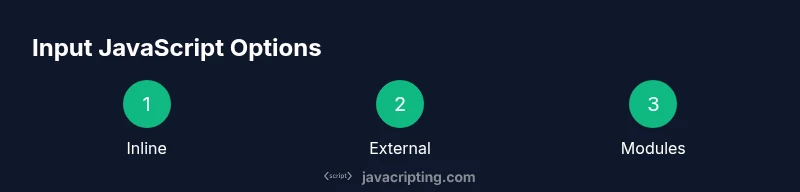
There are three broad categories for inputting JavaScript on a web page. Inline scripts reside directly in HTML markup, external files keep JavaScript in separate files, and modules provide a structured approach with import/export semantics. Each option has trade-offs:
- Inline scripts: quick for tiny tasks, but harder to reuse and harder to apply a strict Content Security Policy (CSP).
- External files: best for reuse and caching, but require an extra HTTP request and a deliberate load order.
- Modules: modern, supports explicit dependencies, but introduces module loading nuances and browser support considerations.
A typical setup uses external files for most logic, with a small inline snippet only if you must run immediately on load. Modules can replace a traditional script file when you need controlled dependencies and modern syntax like import/export.
Inline scripts in HTML
Inline JavaScript lives inside a <script> tag within your HTML. This is convenient for a quick prototype or a page-specific script that won’t be reused elsewhere. However, inline scripts can complicate CSP rules and hinder caching across pages. A canonical inline pattern is to place the script near the end of the body so the HTML renders first, then the script executes. Here’s a minimal example:
<!DOCTYPE html>
<html>
  <head>
    <title>Inline Script Example</title>
  </head>
  <body>
    <h1>Hello</h1>
    <script>
      document.addEventListener('DOMContentLoaded', function() {
        console.log('Inline script ran after DOM is ready');
      });
    </script>
  </body>
</html>
Pros:
- Simplicity
- No extra files
Cons:
- Harder to cache across pages
- CSP restrictions can block inline code unless nonce-based rules are used
External JavaScript files
External JavaScript files live in separate .js files and are loaded using a script tag with a src attribute. This approach aids maintainability and caching, and is the default choice for most projects. You can bundle multiple modules into a single file for production. Example:
<!DOCTYPE html>
<html>
  <head>
    <title>External Script</title>
    <script src="/assets/js/app.js" defer></script>
  </head>
  <body>
    <h1>External Script</h1>
  </body>
</html>
Notes:
- Use defer to ensure the script runs after the HTML parses
- Use async for independent scripts that don’t rely on DOM readiness
Defer vs Async loading strategies
Deferring and async loading affect when JavaScript executes relative to page rendering. Defer loads the script in parallel and executes after parsing, preserving order among deferred scripts. Async loads in parallel and executes as soon as it’s ready, potentially out of order with other scripts. For most apps, defer is the safer default. For analytics or independent widgets, async can improve perceived performance. Example:
<script src="/assets/js/main.js" defer></script>
<script src="/assets/js/widget.js" async></script>
Impact:
- Defer preserves execution order; returns predictable startup sequencing
- Async reduces render-blocking but may require careful dependency management
JavaScript modules and type=module
Modules provide scoped variables, explicit imports/exports, and better maintainability for larger apps. They require <script type="module"> tags, which enables top-level await and modern browser features, but also changes how scripts load and cache. Example:
<script type="module" src="/src/main.js"></script>In modules, relative imports resolve at runtime, so your file layout matters. Modules also enable tree-shaking in build tooling, which can reduce bundle sizes when used with a bundler.
Tip: If you’re using modules, consider a bundler during development to optimize imports for production.
Security, CSP, and performance considerations
Security and performance concerns heavily influence where you place JavaScript. If possible, minimize inline scripts to reduce XSS risk and to simplify CSP configuration. JavaScripting Analysis, 2026 indicates that relying on external scripts with strict CSP and subresource integrity (SRI) improves safety and reliability. When inline scripts are necessary, use a nonce or hash-based CSP to permit safe execution. Performance-wise, prefer loading scripts after the initial render (defer) and keep essential code asynchronous where possible to prevent render-blocking. In production, bundle and minify your scripts to reduce payload size and leverage long-term caching.
Key considerations:
- CSP and SRI policies
- Minification and bundling
- Proper load order to avoid race conditions
- Testing across browsers for module support
Frameworks and modern app structures: where JS lives
Modern frontend frameworks provide conventions for where and how to place JavaScript. In React, logic lives inside components or custom hooks rather than global inline scripts. Vue and Angular have their own patterns for lifecycle hooks and modules. The common thread is that JavaScript should be organized around components or modules, with dependencies declared explicitly. This improves reusability, testing, and collaboration across teams. If you’re migrating to a framework, start by identifying entry points and mapping your existing script locations to component-level logic or modular files.
Practical tip: adopt a centralized build step (bundler) that outputs a single optimized bundle to be loaded with a single script tag, then keep runtime-specific code in modules.
Troubleshooting and debugging tips
If your JavaScript isn’t running as expected, check the basics first: file paths, browser console errors, and load order. Verify that your script is loaded (Network tab) and that the DOM is ready when your code runs. If using modules, ensure the server serves correct MIME types and that CORS policies allow module loading. Common issues include CSP blocks, incorrect defer/async usage, and mismatched import paths. When debugging, temporarily remove CSP restrictions to isolate the root cause, then reintroduce secure policies.
Where to input javascript: practical recap and next steps
Recap: you can input javascript inline, through external files, or as modules. For small scripts, inline code near the end of the body works well. For larger projects, external files with defer are typically best, and modules offer modern dependency management for scalable apps. As you work on your pages, test in multiple browsers, monitor console messages, and optimize for performance and security. With this approach, you’ll know exactly where to input javascript in any web project.
Tools & Materials
- Text editor(Examples: VS Code, Sublime Text, WebStorm)
- Web browser(Chrome, Firefox, Safari, or Edge with DevTools)
- Local development server(Optional for module loading and fetch tests)
- HTML starter template(A minimal page to test script placement)
- JavaScript file(s)(External script files for maintainability)
- Chrome DevTools / Firefox Debugger(For debugging load order, performance, and CSP)
Steps
Estimated time: 30-45 minutes
- 1
Define goal and constraints
Clarify what the script needs to do, which pages it should affect, and whether security policies will constrain inline code. This foundation guides placement decisions and avoids unnecessary refactoring later.
Tip: Write down where the script will be loaded first to avoid conflicts with other scripts. - 2
Choose a primary location
Decide between inline, external file, or module based on reuse, performance goals, and CSP requirements. Start with external files for maintainability on most projects.
Tip: If you’re unsure, default to an external file and use defer for safe rendering. - 3
Create the script file
Add a new JavaScript file in your project structure for external usage or for module code. Keep functions small and focused to simplify testing and debugging.
Tip: Name files clearly to reflect their purpose (e.g., app.core.js, ui.helpers.js). - 4
Link the script to HTML
Insert a script tag with a src attribute for external files, placing it near the end of the body or using defer. For modules, use type="module".
Tip: Ensure the path is correct and the file is reachable by the server. - 5
Decide on defer vs async
Use defer to preserve execution order and avoid render-blocking, or async for independent scripts that don’t rely on others. This choice affects timing and dependencies.
Tip: Test with both attributes on smaller pages to see the impact on startup time. - 6
Switch to modules if needed
If your project uses import/export, migrate to type="module" and organize dependencies into modules. Modules change scope and loading rules.
Tip: Be mindful of browser compatibility and server MIME types. - 7
Test across environments
Run tests in multiple browsers and devices. Check console for errors, network tab for script loads, and verify user interactions.
Tip: Use CSP and SRI during production builds to enhance security. - 8
Refine and optimize
Bundle and minify where appropriate, analyze load times, and ensure caching works for external scripts. Iterate on performance and security posture.
Tip: Leverage a bundler in build tooling to optimize dependencies.
Questions & Answers
Where should I place JavaScript in a basic HTML page?
For most pages, load external JavaScript after the HTML renders using a defer attribute. Inline scripts can be used sparingly for small, page-specific tasks but should be avoided when possible due to CSP and caching considerations.
For a basic HTML page, load external JavaScript with defer, and use inline scripts only for small tasks if necessary.
Is inline scripting ever a good idea?
Inline scripts are convenient for tiny, one-off behaviors but complicate security policies and make caching harder. Prefer external files for production sites and keep inline code to a minimum.
Inline scripting is convenient but should be minimized on production sites; external files are usually better.
What are the advantages of external JS files?
External files improve maintainability, enable browser caching across pages, and simplify versioning. They also integrate cleanly with defer or async loading for better performance.
External scripts help with maintenance and caching, and work well with defer or async loading.
What is type=module and when should I use it?
Type=module enables modern JavaScript features like import/export and top-level await. Use modules for well-structured, dependency-driven code, especially in larger apps.
Type=module enables modern features and is best for modular, scalable code.
How does CSP affect JavaScript input?
Content Security Policy (CSP) controls what scripts can run. Inline scripts require nonces or hashes; external scripts are easier to allow with strict policies. Plan CSP early to avoid blocking legitimate code.
CSP can block scripts; use nonces or hashes for inline code and keep external scripts under strict policies.
How do I debug where a script is loaded?
Use the browser’s Network tab to verify script loading, and the Console to catch errors. Check the page’s DOMContentLoaded or load events to confirm timing.
Check the Network tab to confirm loading and use the Console for errors and timing.
Watch Video
What to Remember
- Place JavaScript externally when possible for caching and reuse
- Use defer to prevent render-blocking and ensure order
- Consider modules for scalable, dependency-driven apps
- Apply CSP/SRI for production security