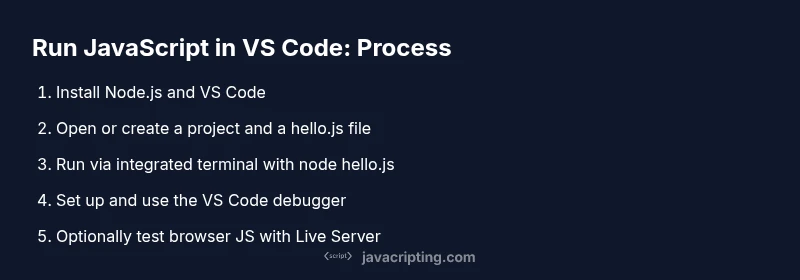
How to Run JavaScript in VS Code: A Practical Guide
Learn how to run JavaScript in VS Code with Node.js, the integrated terminal, debugging, and browser previews. Follow this practical, step-by-step guide to execute, test, and debug JavaScript efficiently.


By the end of this guide, you will learn how to run JavaScript in VS Code using Node.js, the integrated terminal, and the built-in debugger. You’ll execute scripts, inspect outputs, and debug with confidence. This practical approach covers Node and browser-side JS, so you can code faster and catch issues early.
Getting started: prerequisites and setup
If you’re asking how to run javascript in vs code, the prerequisites are straightforward: install a current version of Node.js, install VS Code, and ensure your environment is ready for command-line work. In this section, you’ll review the steps to set up a clean workspace, verify your installations, and configure VS Code for smooth JavaScript execution. A good start is to create a small test file like hello.js and confirm it runs without errors in the terminal.
According to JavaScripting, establishing a consistent environment reduces friction when learning how to run javascript in vs code. With Node.js available, you can run server-side JS, while VS Code’s editor and integrated terminal accelerate edits and tests. You’ll also decide whether you primarily work with Node for backend logic or browser JavaScript that runs in a web page.
Install and configure Node.js for VS Code
To run JavaScript in VS Code, you first need a working Node.js installation. Go to the official Node.js site and install the LTS version, which balances stability and compatibility. After installation, open a new terminal and run node -v to confirm Node is accessible. In VS Code, you can configure the integrated terminal to use your system shell, which ensures consistent command behavior across environments. JavaScripting analysis shows that using a stable Node.js version yields fewer runtime surprises, especially when you transfer code between local development and production environments. Once Node is set up, install the TypeScript/JavaScript language features in VS Code for smarter intellisense and error hints.
Running JavaScript files from the integrated terminal
Open your project folder in VS Code, create a file named hello.js with a simple console.log('Hello, VS Code!');, and press Ctrl+` (or View > Terminal) to open the integrated terminal. Type node hello.js to execute the script and see the output directly in your editor. This approach keeps you in a single workflow without switching tools. If you prefer, you can also run scripts with npm scripts or a task runner for repeatable commands. Ensure the terminal path points to your project, not a global directory, to avoid path issues.
Debugging JavaScript in VS Code
VS Code ships with a powerful built-in debugger. Create a debug configuration by clicking the Run and Debug icon and choosing Node.js. Set breakpoints in your code, then start debugging. You’ll inspect variables, watch expressions, and step through code to identify logic errors. For browser-based JS, you can attach the debugger to a browser session or use a simple local server to simulate real-world scenarios. This structured approach helps you pinpoint issues faster and with less guesswork.
Running browser-based JavaScript and live previews
While Node runs server-side, many projects rely on browser JavaScript. Use Live Server or a similar extension to serve static files and auto-reload when you save changes. Open your HTML that references hello.js in a browser, and you’ll see the console output appear in the browser’s developer tools. This setup is ideal for front-end experiments, UI interactions, and quick prototypes. Remember to keep browser and Node contexts distinct to avoid confusion about where the code executes.
Advanced tips: tasks, npm scripts, and shortcuts
As you become more proficient, automate frequent runs with npm scripts and VS Code tasks. For example, add a script like "start": "node hello.js" to package.json and run npm run start from the terminal. Use VS Code’s keyboard shortcuts to speed up development: Ctrl+Shift+P for Command Palette, F5 to start debugging, and Ctrl+P to quick-open files. Finally, document your workflow so teammates can reproduce your setup, whether you work on Node backends or browser-based projects.
Troubleshooting common issues
If you encounter issues running JavaScript in VS Code, verify your Node installation and PATH configuration. A common problem is the terminal not recognizing node; reloading the shell or restarting VS Code often resolves it. Ensure the correct file is executed (relative paths matter), and check for syntax errors in the code. If debugging stops unexpectedly, confirm your launch.json matches the runtime environment and that breakpoints align with executable lines. With careful checks, most problems resolve quickly.
Tools & Materials
- VS Code editor(Install the latest stable release)
- Node.js (LTS)(Download from nodejs.org; verify with node -v)
- Integrated Terminal(Use Ctrl+` to toggle; ensures quick iterations)
- A sample JavaScript file(Create hello.js with a simple console.log)
- Code Runner extension(Optional for quick runs, not required)
- Live Server extension (optional)(Useful for browser-based previews)
Steps
Estimated time: 40-60 minutes
- 1
Install prerequisites
Download and install the LTS version of Node.js, then install the latest stable VS Code release. Confirm Node is accessible by running node -v in a new terminal. This ensures your environment is ready for JavaScript execution in VS Code.
Tip: Verify Node and npm are on the PATH by running node -v and npm -v in the terminal. - 2
Open or create a project workspace
Open your project folder in VS Code or create a new one. Create a dedicated src or scripts folder for JavaScript files to keep things organized. This reduces confusion when you scale projects.
Tip: Use a consistent folder structure (e.g., src/, tests/, dist/) for clarity. - 3
Create hello.js
In your workspace, create hello.js with a simple console.log statement. This gives you a concrete file to run and debug from the start.
Tip: Keep file names descriptive (e.g., app.js, calculator.js) to reflect purpose. - 4
Run via integrated terminal
Open the terminal (Ctrl+`) and run node hello.js. Observe the output directly in the terminal. This quick feedback loop helps you iterate on logic changes rapidly.
Tip: Use terminal split or multiple tabs if you test multiple files at once. - 5
Configure basic debugging
Click Run and Debug, select Node.js, and create a launch.json if prompted. Set a breakpoint in hello.js and start debugging to inspect runtime behavior.
Tip: Start with a simple breakpoint to verify the debugger is attached before deep dives. - 6
Optional: automate with npm scripts
Add a small npm script like "start": "node hello.js" to package.json. Run npm run start to execute consistently across environments.
Tip: Keep npm scripts small and purpose-specific to avoid unpredictable behavior. - 7
Browser-based testing (optional)
If your script runs in the browser, serve files with Live Server or a local server and open index.html. Use browser devtools to monitor console output and inspect DOM interactions.
Tip: Terminate and re-run the server when you change server-related config or dependencies.
Questions & Answers
How do I run a JavaScript file in Node.js from VS Code?
Create hello.js, open the integrated terminal, and type node hello.js to execute. Use the Debugger for deeper inspection and to set breakpoints as needed.
Open the terminal in VS Code and run the Node.js file with node hello.js to see output and use the debugger for deeper inspection.
Can I run browser JavaScript in VS Code without a server?
Yes, you can run simple browser JavaScript by opening the HTML file in a browser directly (file:// protocol). For live reloading and more realistic testing, use Live Server to serve files from a local server.
You can just open the HTML file in a browser, but Live Server makes it faster with live reload.
What if Node is not recognized in the terminal?
This usually means Node isn’t on your PATH. Reinstall Node.js or adjust your system PATH, then restart VS Code to refresh environment variables.
Check your PATH, restart VS Code, and verify by running node -v again.
How do I set up debugging for a simple script?
Create a launch.json in the Run and Debug panel, choose Node.js, and place breakpoints in your code. Start debugging to step through and inspect variables.
Add a launch.json, set breakpoints, and press F5 to start debugging.
Do I need npm to run scripts?
No, you can run plain JS files with node. npm becomes helpful when you manage dependencies or create repeatable scripts.
npm helps if you have multiple scripts or dependencies, but you can run standalone scripts with node.
Is Code Runner necessary for running JS in VS Code?
Code Runner is optional. VS Code’s built-in terminal and Node.js tooling are sufficient for most workflows.
Code Runner isn’t required; use the terminal and Node.js tools instead.
Watch Video
What to Remember
- Install Node.js and VS Code to begin.
- Run scripts using the integrated terminal for speed.
- Set up a debugger to inspect runtime behavior.
- Differentiate Node.js vs browser contexts to avoid confusion.
- Automate runs with npm scripts and VS Code tasks.