Run JavaScript Online: A Practical How-To Guide
Learn how to execute JavaScript code online using trusted sandboxes, with a step-by-step guide, safety tips, and practical examples for logging, DOM manipulation, and async tasks.


By the end of this guide you will know how to online run javascript code in a safe sandbox, choose a suitable tool, and execute common snippets with immediate feedback. You’ll learn essential safety practices, how to interpret console output, and practical examples for logging, DOM interactions, and basic async tasks.
Why you might want to online run javascript code
For learners and professionals, the ability to online run javascript code without installing tools is a huge time saver. It lets you experiment quickly, share tiny demonstrations, and practice concepts like variables, scope, and asynchronous calls from anywhere. When you search for practical coding practice, you will often see that many tutorials rely on online runtimes to illustrate ideas rapidly. By using a trusted browser-based environment, you can test ideas immediately after reading about them, which accelerates understanding. If you're new to JavaScript, this approach lowers the barrier to entry and helps you focus on logic rather than setup. It also makes pair programming sessions smoother, since both parties can see the same output in real time. The phrase online run javascript code captures the core action: you write code and instantly observe results in a sandboxed browser context.
Understanding sandboxing and safety
Online runtimes run your code inside a sandbox to prevent it from interacting with your device or network in uncontrolled ways. This isolation protects you and your system, but it also means certain browser features or file system access are restricted. Before you trust a tool, review its security model: does it sandbox script execution, isolate memory, and limit network access? A good sandbox will display console output, errors, and warnings clearly and offer a quick reset of the session. As your snippets grow—especially when you introduce DOM manipulations, timers, or fetch calls—remember sandbox boundaries. If persistence is needed, use export features to save your code or results instead of relying on the host. Understanding these safety aspects helps you decide when online environments are appropriate for learning or prototyping.
What to look for in an online runtime
- Clear console and error reporting: see logs and stack traces, not just outcomes.
- Reproducible environments: the same code should behave consistently after restarts.
- Safe network handling: sandboxed requests and restricted access reduce risk.
- Easy sharing: copyable links or embeddable snippets facilitate collaboration.
- Export and import: save code, outputs, or sessions for later use.
If you’re unsure, start with a simple snippet to verify feedback loops and then expand to asynchronous operations like fetch or setTimeout. The right runtime supports your learning path, not just flashy features.
Popular online runtimes and sandboxes
Online runtimes come in many flavors. Look for browser-based editors with built-in consoles, immediate feedback, and straightforward sharing. Common features include syntax highlighting, error highlighting, console output, and the ability to reset sessions with a single click. Choose tools that emphasize user-friendly interfaces, quick-start templates, and clear documentation. For longer projects or learning, prefer environments that offer persistent workspaces, version history, and the option to export code for offline use. When evaluating options, prioritize safety, reliability, and a clear path from code to observable results. This approach makes it easier to learn online and transfer skills to local development when you’re ready.
Step-by-step: your first snippet online
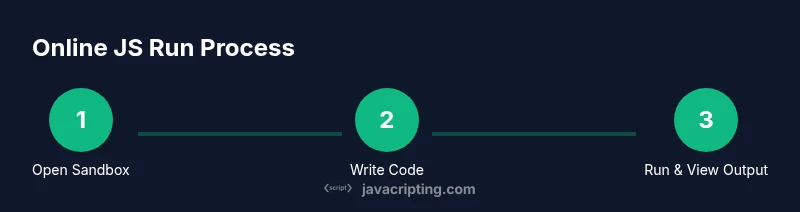
Open a trusted online runtime and create a new snippet. Clear any placeholder code, then enter a simple test like:
console.log('Hello from the online runner');Run the snippet and observe the console output. If an error appears, re-check syntax and ensure you’re not inside restricted APIs. Experiment with additional lines to print variables and use basic operators to become comfortable with the environment quickly. Remember to reset the session if results behave unexpectedly, and try a slightly more complex example to build confidence.
Understanding output and debugging
Output in online runtimes usually includes a console pane that shows logs, errors, and warnings. Use console.log for plain values, console.error for problems, and console.table for structured data. If your code includes asynchronous calls, ensure you await promises or use then to capture results. For debugging, many runtimes provide a lightweight debugger or breakpoints. Use them to pause execution after you log a value or before a suspected error, inspect variables, and step through the code. By building a habit of inspecting outputs early, you’ll rapidly diagnose logic or timing issues in online experiments.
Security and privacy considerations
Never paste sensitive credentials, secrets, or API keys into an online runner. Even sandboxed environments can have access to clipboard data or persistent storage in some configurations. When testing network requests, use dummy endpoints and avoid real services that could leak data. If you need to test authenticated flows, run those steps in a trusted local environment or use mock services. Always review the runtime’s privacy policy and terms of service to understand data retention and session handling. Treat online runners as learning tools rather than permanent development environments.
Best practices and recommended workflows
Start with small, isolated snippets to verify concepts, then gradually increase complexity. Use descriptive console messages to clarify what each line does, and keep a consistent naming scheme for variables. When you’re ready to scale, copy code into a local editor and run it in a real browser or Node.js to observe differences. Save your results by exporting code or taking snapshots of the console output. Finally, keep a log of what you tried, what worked, and what didn’t to accelerate future experiments.
Alternatives: offline and local development
For long-term projects or sensitive code, consider offline options like local editors and Node.js. Local environments offer full access to the filesystem, richer debugging tools, and reproducible builds. You can still learn JavaScript online with sandboxed sandboxes for learning concepts, but move to a local setup when you need persistent projects, advanced tooling, or server-side code. The choice depends on your goals: use online runtimes for quick experiments and learning, and local setups for serious development and production-quality work.
Tools & Materials
- Web browser (latest version)(Ensure browser supports console and Developer Tools)
- Stable internet connection(Needed to access online runtimes)
- Optional: Your test code snippet(Paste code you want to run into the online editor)
- Clipboard manager or hotkeys(To copy results quickly between tools)
- Account with a trusted sandbox (optional)(Some runtimes save your work and settings)
- Screenshots or screen recording tool(Helpful for sharing results or debugging steps)
Steps
Estimated time: 15-25 minutes
- 1
Choose a trusted online runtime
Identify a browser-based environment with a clear security model and straightforward output. Verify that it provides a console and a reset option for fresh sessions.
Tip: Start with a simple test snippet to confirm feedback latency and console availability. - 2
Open a new snippet
Navigate to the editor and remove any placeholder code. Create a clean workspace for your first test.
Tip: Keep a descriptive file name for later reference. - 3
Enter your JavaScript code
Type a basic snippet, such as a console.log, to confirm the environment is executing code correctly.
Tip: Use clear, descriptive console messages to track output. - 4
Run the snippet
Click the Run button or press the shortcut to execute. Observe the console for output, errors, and warnings.
Tip: If nothing appears, check the console pane is visible and not hidden. - 5
Debug with simple experiments
Add another line, test variables, and use console.log to inspect values. For asynchronous code, await or chain promises.
Tip: Comment out sections to isolate issues quickly. - 6
Save, share, or export
Export your snippet or copy the code to another editor for deeper testing. Share a link if collaboration is needed.
Tip: Keep a local backup of important snippets.
Questions & Answers
What is an online code runner for JavaScript?
An online code runner is a browser-based environment that lets you write and execute JavaScript code without installing software. It provides an editor, console, and often debugging tools to observe output in real time.
An online runner runs your JS in the browser, so you can test ideas quickly without installing anything.
Is it safe to run code online?
Safety depends on the sandbox. Use trusted runtimes that isolate code and limit access to your device. Do not run sensitive code or credentials in public online environments.
Yes, when you use trusted sandboxes, but avoid secrets in online runtimes.
Can I run Node.js code online?
Some online runtimes simulate Node-like environments, but many focus on browser JavaScript. Check the tool’s features to confirm Node support before testing server-side code.
Some online runtimes mimic Node, but many only run browser JavaScript.
How can I save my work from an online runner?
Many runtimes offer export options, copy-paste functionality, or cloud saves. Use these features to preserve snippets and outputs for later review.
Export your code or save it in the cloud to keep a record.
What are best practices for learning JavaScript online?
Begin with simple tasks, observe outputs, use debugging tools, and gradually introduce asynchronous concepts. Maintain a habit of documenting what you learn for faster progress.
Start small, watch the outputs, and build up with debugging tools.
Watch Video
What to Remember
- Choose a trusted sandbox with strong safety guarantees.
- Inspect console output to verify behavior and catch errors early.
- Avoid sharing sensitive data in online environments.
- Prefer offline or local development for persistence and complex projects.
- Export or save work frequently to maintain a personal history.