Run JavaScript Online: A Practical How-To Guide
Learn to run JavaScript online using browser-based tools. This step-by-step guide covers selecting online runners, writing your first script, debugging, saving, and sharing code to accelerate learning.


By the end of this quick guide you will be able to run JavaScript online using browser-based tools, experiment with code snippets, and share runnable examples with peers. You’ll learn how to pick a safe online runner, create a first script, run it, and interpret results. No local setup required—just a modern browser and internet access.
Why run JavaScript online?
Running JavaScript online offers a fast, permission-free way to test ideas, prototype concepts, and learn by doing. With browser-based runners, you can write, run, and iterate code without installing Node.js or a code editor on your machine. This reduces setup time for beginners and enables learners to experiment from anywhere. According to JavaScripting, running JavaScript online is ideal for quick testing and sharing code snippets, and the approach helps you focus on logic rather than tooling. The JavaScripting team notes that online environments encourage exploration through instant feedback, which accelerates skill-building for aspiring developers. When you’re learning, try small snippets that demonstrate core concepts: variables, data types, control flow, and basic functions. The best practice is to keep your experiments small, readable, and repeatable, so you can build a mental model of how JavaScript behaves across environments. Overall, online runtimes complement traditional tooling and empower you to practice anywhere with minimal friction.
Choosing the right online runner
The first decision is selecting an online runner that matches your goals: quick experiments, teaching, or sharing with mentors. Look for a clean editor, live console output, and the ability to reset or clear the workspace. Privacy controls matter if you’re working with example data or personal experiments. For beginners, a tool with a simple UI and helpful error messages reduces frustration and speeds up learning. As you gain confidence, evaluate whether the platform supports browser APIs, simple DOM manipulations, and cross-browser testing. Since there’s no installation, you can switch between tools to compare features and discover which one aligns with your workflow. Remember to keep your code organized with descriptive variable names and small functions to reinforce good habits from day one.
Quick-start: your first script
Open your chosen online runner and create a new snippet. Enter the following simple program:
console.log("Hello, world!");Run the code to observe the output in the console area. If you see the message Hello, world!, you’ve successfully executed JavaScript online. If not, check for syntax errors or environment-specific restrictions.
Understanding the output: console vs DOM
Online runtimes typically provide a console output panel that shows logs, errors, and warnings. In browser contexts, you can also manipulate the DOM to see changes in a web page. The console is great for quick verification of expressions and function results, while DOM manipulations demonstrate how JavaScript interacts with HTML. Practice both approaches: start with console.log to verify values, then create a tiny DOM change (for example, setting innerText of a paragraph) to observe how the script affects the page.
Debugging common issues when using online runners
Syntax errors are the most common culprits when you start running code online. The console will usually point you to the exact line of trouble, so read the message carefully and check for missing punctuation, unmatched braces, or misspelled keywords. Some online runtimes restrict certain globals or modules, which can lead to environment-specific failures. If you encounter a runtime error, break your code into smaller chunks, test each function independently, and add console.log statements to trace values. Finally, remember that asynchronous code (promises, async/await) behaves differently in browsers than in Node.js environments.
Advanced features and limitations of online runtimes
Online tools excel at basic experimentation, learning, and quick sharing, but they often lack full Node.js support or module resolution. If your task relies on require, module.exports, or specific file system APIs, you may need a local environment or a dedicated online runner that emulates Node. Some platforms offer sandboxed workspaces with snippet exports, but you should verify whether top-level await, ES modules, or worker threads are fully supported. Use online runtimes to validate ideas early, then port to a local environment for more complex development. This approach keeps your learning fast while avoiding false assumptions about browser-only features.
Best practices for learning and experimentation
- Start with small, isolated experiments that test a single concept (variables, loops, functions) before combining features.
- Use descriptive names and comments to document your thought process, which helps future you and teammates.
- Regularly reset workspaces to avoid hidden dependencies from previous runs.
- Save and export code snippets to create a personal library you can reuse in future projects.
Saving, sharing, and collaborating on your code
Many online runtimes offer shareable links or export options for snippets. When you want feedback, share a reproducible example with the console output intact. If you plan to publish publicly, consider removing any sensitive data from code blocks and adding brief explanations to help others understand your approach. Collaboration is easier when you keep versions of your work and annotate what you changed in each iteration.
Real-world practice tasks to try today
- Write a function that adds two numbers and returns the result. Call the function with sample inputs and log the result.
- Create an array of names and print a greeting for each item using a loop.
- Build a tiny counter that increments on each function call and updates a text node on a page (if the runner supports DOM APIs).
- Experiment with template literals to display a dynamic message that includes variables and expressions.
- Try a simple asynchronous task using setTimeout to log a message after a delay. Observe the order of outputs.
These steps reinforce core JavaScript concepts in a risk-free online environment and prepare you for real-world coding scenarios.
note":null},
Tools & Materials
- A modern web browser(Chrome, Firefox, Edge, or Safari)
- Stable internet connection(Broadband or reliable Wi-Fi)
- Online JavaScript playground(Sandboxed editor with console output (e.g., generic online editors))
- Text editor or clipboard(Optional for drafting offline before pasting)
- Documentation references(MDN/ECMA references for quick lookups)
Steps
Estimated time: 45-60 minutes
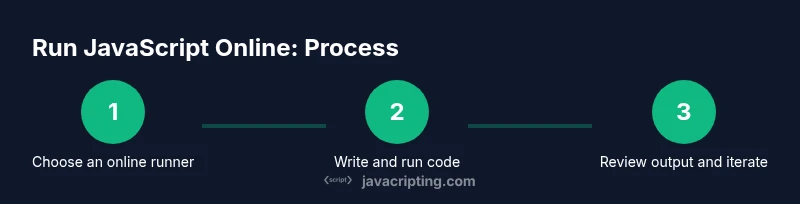
- 1
Identify a safe online runner
Choose a reputable browser-based environment that does not require installation and offers a clear console. Check privacy policies and user reviews if available. This step sets expectations for what features you’ll rely on (console, editor, and output pane).
Tip: Prefer options with an accessible reset/clear button to avoid lingering state. - 2
Open a new script and set up your workspace
Create a fresh snippet or file. Name it descriptively (e.g., hello-world.js) and ensure the console/output area is visible. A clean workspace reduces confusion during debugging.
Tip: Rename the project to help you recall its purpose in future sessions. - 3
Write your first script
Enter a simple program such as console.log("Hello, world!"); Run it to verify basic output. Start small to confirm the environment is functioning correctly.
Tip: Use single-purpose lines to isolate issues more easily. - 4
Run the script and read the output
Execute the code and inspect the console for messages, errors, or warnings. If output is missing, check for syntax errors or environment restrictions.
Tip: If you see an error, read the message carefully and trace it to the exact code line. - 5
Experiment with variations
Modify data types (strings, numbers), use functions, and try simple DOM manipulations if supported. Observe how changes affect the output or page.
Tip: Comment your experiments to track what each change demonstrates. - 6
Save and share your snippet
Use the platform’s export or share feature to save a copy or generate a shareable link. Share with teammates or mentors for feedback.
Tip: Before sharing, ensure no sensitive data is included in the code.
Questions & Answers
What does it mean to run JavaScript online?
It means executing JavaScript code in a browser-based tool or sandbox without installing Node.js locally. These environments provide a console, editor, and output panel to test code quickly.
Running JavaScript online means using a browser-based editor and console to execute code without installing anything.
Which online tools are best for beginners?
For learning, start with simple online editors that include a console and live output. Look for clean UI, clear error messages, and the ability to save snippets.
For beginners, choose a simple online editor with a console and handy saving options.
Can I run Node.js code in an online runner?
Some online runners simulate browser environments; others offer Node-like runtimes. Check the tool’s docs to confirm supported features such as require, module.exports, or top-level await.
Some online runners mimic Node.js, but not all; check if require and modules are supported.
Are there risks running code in a public online tool?
Yes. Public online editors can expose your code to others, and some runtimes may execute untrusted code. Avoid entering secrets and use reputable sites.
Yes—privacy risks exist. Don’t paste sensitive data and use trusted tools.
How do I save or share my online scripts?
Most platforms provide a shareable URL or export option. Use those features to share your work with teammates or mentors, while respecting privacy settings.
You can copy a link or export your code for sharing.
Why might online results differ from local development?
Online environments run in sandboxed contexts and may have different global objects or module support. Expect small differences in APIs or timing.
Online runtimes can differ from your local setup in APIs and timing.
Watch Video
What to Remember
- Run JavaScript online to test ideas without setup.
- Choose a trusted online runner with a responsive console.
- Practice with small, focused snippets to reinforce core concepts.
- Save and share to get feedback and accelerate learning.