Why is My JavaScript Not Working? An Urgent Troubleshooting Guide
A fast, practical troubleshooting guide to diagnose and fix JavaScript issues. Learn how to read console errors, correct script order, and ensure DOM readiness for reliable web pages.


If you’re asking why is my javascript not working, the most common causes are runtime errors, script-loading order, or code running before the DOM is ready. Start by opening the browser console to view errors, then check that scripts load in the correct order and that DOMContentLoaded or window.onload handlers fire. This quick guide helps you triage and fix the most frequent issues fast.
Why JavaScript Not Working: Urgent Overview
In real-world apps, the failure modes are rarely mysterious, but they’re usually predictable. The moment you see a non-responsive button, missing data, or functions that used to work suddenly producing errors, the problem is almost always tied to one of a handful of root causes: syntax mistakes, runtime exceptions, incorrect script loading order, or code executing before the DOM is fully ready. This section dives into how to classify symptoms quickly and set up a reliable triage process so you regain control fast. By recognizing the patterns, you’ll save hours of blind debugging and prevent regressions in future changes. Remember: a disciplined approach reduces downtime and keeps projects moving, especially when deadlines loom.
Quick Checks You Can Do Immediately
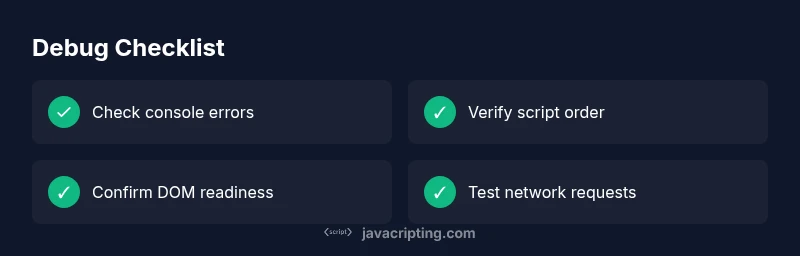
Before diving into code, run through a small checklist that surfaces the vast majority of issues. First, inspect the browser console for syntax errors or uncaught exceptions. Next, confirm that your script tags appear in the correct order, and that any modules or dependencies load before the code that uses them. Finally, ensure your code runs after the DOM is ready—using DOMContentLoaded, defer on script tags, or a modern framework lifecycle hook. With these checks, you often fix the problem in minutes and avoid chasing ghosts later.
Distinguishing Client-side vs Server-side Issues
Sometimes the problem isn’t the code but where it runs. Client-side issues occur in the browser, typically due to network failures, CSP restrictions, or missing assets. Server-side problems involve responses that your JavaScript relies on (APIs, data endpoints, or server-rendered content). Understanding where the breakdown happens helps you pick the right fixes and prevents unnecessary edits in the wrong place.
The Role of the DOM and Page Lifecycle
JavaScript often depends on the DOM being present and ready. If scripts run too early, elements may not exist yet, or events might not be bound correctly. Use strategies like DOMContentLoaded, window.addEventListener('load', ...), or the defer attribute on script tags to align your code with the page lifecycle. This alignment dramatically reduces subtle timing bugs that plague dynamic UIs and interactive components.
Common Runtime Errors and Their Fixes
Uncaught TypeError, ReferenceError, and similar messages reveal exactly where the problem lies. Common fixes include correcting typos in variable or function names, ensuring variables exist in the right scope, and guarding calls with null checks. If an error originates from a third-party library, confirm you’re loading the correct version and that it’s compatible with your environment. After addressing errors, re-run the page to verify the fix.
Step-by-Step Troubleshooting Strategy
A consistent debugging workflow minimizes downtime and prevents regressions. Start by reproducing the issue in a clean environment, then isolate the smallest failing unit, implement fixes, and verify across browsers. Document what changes you made and why, so teammates can review and reproduce the results. The mindset is as important as the code: be methodical, test assumptions, and constrain changes to small, reversible steps.
Debugging Tools and Best Practices
Leverage the browser’s developer tools: console, sources, network, and performance tabs. Breakpoints, watch expressions, and network throttling help you see exactly how data flows and where it derails. Maintain a habit of writing small, testable units and using feature flags for risky changes. Finally, adopt a quick rollback plan so you can revert quickly if a fix introduces new issues.
Prevention: How to Build Resilience into JavaScript
Preventing issues is cheaper than debugging them. Use strict mode to catch mistakes early, modularize your code, and declare dependencies clearly. Implement defensive checks, fail gracefully, and add automated tests that cover common user flows. Finally, keep your build pipeline and linting rules strict to catch problems during development instead of in production.
Real-World Debug Scenarios and Lessons
In practice, you’ll encounter a mix of timing bugs, missing assets, and fragile integrations. Treat each scenario as a learning opportunity: reproduce it locally, map a minimal set of changes, and validate across environments. Over time, your process becomes faster and more reliable, reducing firefighting during critical releases.
Steps
Estimated time: 45-60 minutes
- 1
Identify Symptoms
Document what isn’t working, when it started, and any error messages. Reproduce the issue in a simple environment if possible to isolate the problem.
Tip: Write down observed behavior and any related UI changes before editing code. - 2
Open the Console
Check for syntax errors, undefined variables, or failed network requests. Note the exact file and line numbers for quicker fixes.
Tip: Filter by errors to focus on critical issues first. - 3
Check Script Loading Order
Ensure libraries load before their consumers. If using modules, verify import paths and bundle order.
Tip: Consider using defer or async thoughtfully to control timing. - 4
Verify DOM Readiness
Confirm your code runs after the DOM is ready—for example, inside a DOMContentLoaded listener or after window.load.
Tip: If you rely on elements, guard code with document.querySelector checks. - 5
Inspect Network Activity
Look for 404s or blocked requests for script files or API calls. Confirm CORS and CSP settings won’t break execution.
Tip: Refresh and clear caches to ensure you’re loading fresh assets. - 6
Test and Validate Fixes
Apply changes in small, reversible steps. Re-run the page and confirm the issue is resolved across different environments.
Tip: Use version control branches to track debugging progress.
Diagnosis: Page actions do not run or functions are undefined after load
Possible Causes
- highSyntax errors in the JavaScript code
- highScripts loaded in the wrong order or missing dependencies
- highCode executing before the DOM is ready
- mediumNetwork issues or CSP blocking script loading
- lowMissing module imports or incorrect bundling
Fixes
- easyOpen the console, locate the exact error line, and fix typos or incorrect references
- easyReorder scripts so dependencies load first or convert to modules with explicit imports
- easyWrap code in DOMContentLoaded or use defer on script tags to ensure DOM is ready
- mediumCheck the Network tab to confirm scripts load with 200 and are not blocked by CSP or network failures
- hardVerify module paths, bundler config, and available exports; rebuild if necessary
Questions & Answers
Why does JavaScript stop working after an update?
Updates can introduce syntax errors, change API names, or alter loading order. Reproduce in a clean environment, check the console for new errors, and verify dependencies. Revert or adjust incremental changes to identify the root cause.
Update issues often cause syntax or loading problems; check console errors and verify dependencies.
What does an Uncaught ReferenceError mean in the console?
A ReferenceError means your code referenced a variable or function that isn’t defined in scope. This is typically caused by typos, missing imports, or load order problems. Fix the reference or adjust the scope and re-test.
A ReferenceError usually means a variable or function isn’t defined where you expect it to be.
How can I test if a script is blocked by CSP?
Check the browser console for CSP-related messages. Look at the response headers to confirm allowed script sources and adjust policy or host resources accordingly. Use a development policy to test changes safely.
Look for CSP error messages and adjust the policy in development before applying to production.
Can network issues cause JavaScript to fail silently?
Yes. If a script or API call fails to load, dependent code may not execute. Inspect the Network tab for 404s or blocked requests and ensure endpoints are accessible.
A failed network request can stop related scripts from running; check the Network tab.
What is the best practice to prevent this in production?
Adopt a consistent debugging workflow, write small unit tests, and enable strict mode. Use bundlers to manage dependencies and implement fallback paths for critical features.
Create a repeatable debugging process and test thoroughly before production.
Watch Video
What to Remember
- Diagnose with the console first and fixx in small steps
- Ensure scripts load in the right order and DOM is ready
- Use breakpoints, network, and DOM tools to localize issues
- Document changes and prevent regressions with tests