How to Run JavaScript in Terminal: A Practical Guide
Learn how to javascript in terminal with Node.js and lightweight runtimes. Install, run scripts, use inline code, and debug from your shell with practical, step-by-step guidance.


By the end, you’ll be able to run JavaScript directly in your terminal using Node.js or a lightweight alternative. You’ll install a runtime, execute scripts both from files and inline, and quickly test ideas in a REPL. This quick guide gives you a reliable workflow for everyday development, with practical tips and safety reminders. According to JavaScripting, this skill boosts productivity for frontend developers.
Why running JavaScript in the terminal matters
Understanding how to javascript in terminal opens up a fast feedback loop for ideas, automation, and debugging. In a shell, you can prototype functions, test small snippets, and automate repetitive tasks without relying on a full browser environment. This is especially valuable for frontend engineers who want to validate logic, parsing, or small data transforms quickly. According to JavaScripting, mastering terminal-based JS workflows reduces context-switching and speeds up debugging sessions. The JavaScripting team found that many practical tasks—deriving data summaries, quick tooling, or build-time helpers—benefit from a lightweight, scriptable runtime. In short, the terminal becomes a powerful ally for everyday JavaScript work, not just a dev console.
Choosing a runtime: Node.js vs. Deno vs. other options
The most common choice for running JavaScript in the terminal is Node.js, prized for its broad ecosystem, stability, and npm tooling. Deno is another modern option designed with security in mind and a simpler module system. When you compare runtimes, consider compatibility with your target environment, the availability of libraries, and how you plan to manage dependencies. For many developers, Node.js remains the default due to its maturity and vast community support. However, if you need stricter permissions or a different module strategy, Deno offers compelling trade-offs. Your decision will shape how you structure scripts, manage dependencies, and optimize startup times for command-line tools.
Installing Node.js and verifying your setup
To get started, install Node.js from the official site. The installer includes npm, which helps manage packages and tools you’ll use from the terminal. After installation, verify the runtime is accessible by running node -v to print the version and npm -v to confirm npm is installed. If these commands return a version string, you’re ready to move on. If not, re-run the installer or check your PATH. Keeping a clean, well-organized development directory helps you avoid confusion when you begin creating and running scripts.
Running JavaScript files and inline code from the terminal
You can run a JavaScript file by invoking node with the filename, e.g., node hello.js. For quick tests, inline code works with node -e 'console.log("Hello")'. When you need to execute a script from a path, ensure the file contains valid JavaScript and uses proper line endings. If you plan to share scripts across projects, consider keeping them in a dedicated scripts/ directory and referencing them by path. This habit makes it easier to scale your terminal JS workflow as you grow your tooling.
Using the REPL for quick experiments and debugging
Node’s REPL lets you type statements and see results immediately, which is ideal for experimenting with algorithms, data structures, and small utilities. Start it by running node with no arguments. In the REPL, you can press Enter to evaluate expressions, use .help for commands, and exit with .exit. For long experiments, copy-and-paste chunks into a file later, then run node file.js to verify behavior. The REPL is a time-saving sandbox for rapid iteration.
Advanced tips: shebangs, npm scripts, and aliases
If you plan to run JS scripts frequently from the terminal, you can make them executable by adding a shebang at the top (#!/usr/bin/env node) and setting execute permissions (chmod +x script.js on Unix-like systems). Wrapping common tasks in npm scripts or CLI-friendly binaries can streamline your workflow. You can also set shell aliases like alias runjs='node /path/to/your/script.js' to reduce typing and improve consistency across projects.
Common pitfalls and troubleshooting
Be mindful of the working directory when running scripts; paths are relative to where you invoke node. If you encounter issues with permissions on Unix-like systems, ensure the script has execute permissions and the shebang is correct. Windows users should be aware of PowerShell vs. Command Prompt differences and may need to restart the terminal after installations. When in doubt, run a minimal test with node -e 'console.log("test")' to confirm the runtime is functioning, then expand to full files.
Tools & Materials
- Computer with a terminal or shell(macOS Terminal, Windows PowerShell/WSL, or Linux terminal)
- Node.js installed(Latest LTS recommended)
- Text editor or IDE(For creating script files)
- Sample JavaScript file(e.g., hello.js with console.log('Hello, World!'))
- Optional: Deno runtime(Alternative runtime to Node.js)
- Internet connection(To download installers or docs)
Steps
Estimated time: Total time: about 20-30 minutes
- 1
Install a runtime
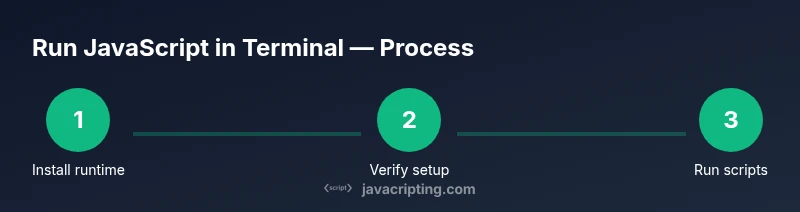
Install Node.js from the official site and ensure npm is included. This provides the engine to run JavaScript in the terminal. If you already have Node.js, skip to verification.
Tip: Choose the LTS version for stability and broad compatibility. - 2
Verify installation
Open your terminal and run node -v to confirm the runtime is accessible. Also run npm -v to verify package management is installed with Node.
Tip: If commands fail, check PATH settings or restart the terminal. - 3
Create a test file
In your project directory, create a file named hello.js with a simple console.log('Hello, World!'). This file will be used to demonstrate file-based execution.
Tip: Keep test files in a dedicated scripts/ folder. - 4
Run a script from a file
Navigate to the directory containing hello.js and run node hello.js. The terminal should print Hello, World!.
Tip: Use absolute paths if you encounter path resolution issues. - 5
Run inline code
Test small expressions directly from the terminal with node -e 'console.log("Hello")'. This helps validate runtime behavior without creating files.
Tip: Escape quotes correctly: node -e \'console.log(\"Hi\")\'. - 6
Use the REPL for experiments
Start the interactive REPL by running node with no arguments. Type JavaScript expressions and see immediate results for rapid experimentation.
Tip: Use .exit to leave REPL when finished. - 7
Make scripts executable (Unix)
Add a shebang at the top of the file (#!/usr/bin/env node) and chmod +x script.js to execute it directly as ./script.js.
Tip: Verify encoding and line endings to avoid errors. - 8
Use npm scripts or CLI tools
Create npm scripts in package.json to run your JS tasks, or install CLI tooling to distribute executables.
Tip: Organize scripts under scripts/ to keep your project tidy. - 9
Troubleshoot common issues
If a script doesn’t run, check the current directory, file permissions, and Node version. Run a minimal test to isolate the problem.
Tip: Keep a small scratchpad file to test environment changes.
Questions & Answers
Can I run JavaScript in Terminal without Node.js?
A runtime is needed to interpret JavaScript in a terminal. Node.js is the most common choice, with Deno as an alternative. Without a runtime, the terminal cannot execute JS code.
Yes, you need a runtime like Node.js or Deno to run JavaScript in the terminal.
What is the Node.js REPL and how do I access it?
Open your terminal and type node with no arguments. This starts the interactive REPL where you can type JS expressions and view results immediately.
Open your terminal and type node to start the REPL, then enter JavaScript commands.
How do I run a JavaScript file from the terminal?
Ensure the file contains valid JavaScript and execute it with node filename.js. If you want executable scripts on Unix, add a shebang and set execute permissions.
Use node followed by the file name to run a script, or make it executable with a shebang.
How can I make a script executable on Unix-like systems?
Add a shebang (#!/usr/bin/env node) at the top of the file and run chmod +x script.js. Then you can execute it as ./script.js.
Put a shebang at the top and give the file execute permissions, then run it directly.
Are there alternatives to Node.js for terminal JS?
Yes. Deno is a security-focused runtime with built-in TypeScript support. Other options include browsers for testing, but Node.js remains the most widely used for CLIs.
Deno is an alternative to Node for terminal JavaScript work, with different security and module features.
What security considerations apply when running code in the terminal?
Only run code from trusted sources. Be cautious with eval and dynamically loaded content. Use isolated environments when testing unfamiliar scripts.
Only run trusted code in the terminal and be cautious with dynamic evaluations.
Watch Video
What to Remember
- Install Node.js to enable terminal JS execution
- Run scripts with node file.js for file-based tests
- Experiment rapidly with the REPL for quick validation
- Make scripts executable with a shebang for convenience