How to Run a JavaScript File with Node.js
Learn how to run a JavaScript file with Node.js across Windows, macOS, and Linux. Step-by-step setup, execution, debugging tips, and best practices for reliable, repeatable runs.


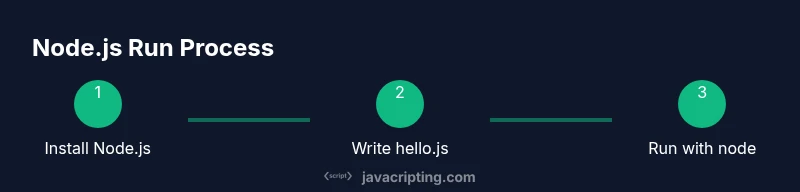
Goal: Learn how to run a JavaScript file using Node.js. You’ll need Node installed, a .js file, and access to a terminal or command prompt. This quick answer covers the exact commands, permission checks, and common flags so your script executes reliably on Windows, macOS, or Linux.
What running a JavaScript file with Node.js means
According to JavaScripting, running a JavaScript file with Node.js is a straightforward, repeatable way to execute code outside the browser. Node acts as a JavaScript runtime built on the V8 engine, enabling you to run scripts, build CLIs, and automate tasks from the command line. The JavaScript file you write becomes a self-contained unit that can interact with the filesystem, spawn child processes, and read environment variables. This guide focuses on the practical, hands-on steps you need to take to run a file reliably across platforms. The JavaScripting team found that many beginners stumble on PATH setup and permission issues—this content centers on making those steps predictable.
In short: node <filename.js> executes the file in a Node environment. You’ll typically run it from a terminal or PowerShell, and you can pass arguments, require modules, or leverage npm scripts to streamline the process.
Prerequisites and what you will need
Before you run a JavaScript file with Node.js, gather a few essentials. First, Node.js must be installed on your machine. You’ll verify installation with node -v to print the version. A simple JavaScript file (for example, hello.js) is required, along with a terminal or command prompt. A text editor is helpful for writing code, but you can create and edit files with basic tools as well. Optional but recommended: an editor with syntax highlighting and integrated terminal. Having an active internet connection is useful for downloading Node.js and consulting official docs. This section sets up a reliable baseline so your run is consistent across environments.
Installing Node.js on Windows, macOS, and Linux
Install Node.js from the official site (nodejs.org) and choose the LTS version for stability. On macOS and Linux, you can often use a package manager (Homebrew on macOS with brew install node, or apt/yum on Linux). On Windows, run the installer and ensure Add to PATH is selected. After installation, restart your terminal and run node -v to confirm the runtime is accessible. Keeping Node up to date reduces security risks and compatibility issues with newer JavaScript features.
Writing your first script: hello.js
Create a file named hello.js and add a simple program:
// hello.js
console.log('Hello from Node.js!');
This tiny script demonstrates the standard output path. You can run it immediately with node hello.js to see the string printed to the console. As you grow your script, you’ll import modules, read arguments, and work with asynchronous code, but this basic example lays the foundation for understanding the runtime behavior.
Running the script from the terminal: basic execution
Navigate to the directory containing your script and run:
node hello.jsThe terminal will display Hello from Node.js! if everything is configured correctly. If you want to call the script with arguments, use:
node hello.js arg1 arg2Inside Node, those arguments appear in process.argv. This simple pattern is the gateway to more advanced flows, including building CLIs that accept user input and options.
Passing arguments and using process.argv
When you run a script with arguments, Node exposes them in the process.argv array. The first two elements are the node executable path and the script path, so your actual arguments start at index 2. For example, in hello.js you can print the arguments by:
console.log(process.argv.slice(2));This becomes extremely helpful for simple CLI tools or test harnesses. Parsing those arguments enables you to build flexible scripts that respond differently based on user input.
Module basics: require() and ES modules
Node uses CommonJS modules by default with require, although newer versions support ES modules via import. To use a local module, create a file, say math.js, and export functions:
// math.js
exports.add = (a, b) => a + b;
Then in your main file:
const { add } = require('./math.js');
console.log(add(2, 3)); // 5
As your projects grow, you’ll rely on npm packages to expand functionality, streamline tooling, and implement complex features without reinventing the wheel.
Using npm scripts to run files
Npm scripts simplify running your JavaScript files, especially in larger projects. In your project root, create a package.json and add a script:
{
  "name": "my-app",
  "version": "1.0.0",
  "scripts": {
    "start": "node hello.js"
  }
}
Then you can run the script with npm run start. This approach is particularly useful for coordinating environment setup, running tests, or launching development servers. It also helps to standardize commands across team members.
Debugging and common errors you’ll encounter
As you run scripts, you’ll encounter common pitfalls: ENOENT if the file isn’t found, EACCES due to permissions, or Node not recognized if PATH isn’t set correctly. Start debugging by printing diagnostic information with console.log and checking process.cwd() for the current working directory. If you see syntax errors, confirm your file encoding and check for missing parentheses or braces. When dealing with asynchronous code, use console.log with timestamps or a debugger statement to trace execution order. Consistency in file naming and path references is essential to avoid frustrating runtime errors.
Environment differences: PATH, permissions, and cross-platform concerns
PATH configuration determines whether you can run node from any directory. On Windows, ensure C:\Program Files\nodejs or your installation path is in PATH. On Unix-like systems, verify that /usr/local/bin or the npm global bin directory is included. Permissions matter when writing files or installing global packages. Running commands with sudo (Linux/macOS) or elevated PowerShell on Windows can resolve ENOENT or EACCES issues. Adopting a consistent directory structure in your projects helps prevent path-related surprises when moving between macOS, Windows, and Linux.
Running asynchronous code and child processes
Node supports asynchronous operations via callbacks, promises, and async/await. For example, you can read a file asynchronously using fs.readFile and log the result. When you spawn child processes, you can run other scripts or shell commands concurrently, which is common in build pipelines and tooling. Understanding the event loop is key: I/O operations are off the main thread, allowing your script to remain responsive while waiting for results.
Security considerations and best practices for running local JavaScript files
Never execute code from untrusted sources. Use sandboxing or strict input validation when your scripts process user input. Keep dependencies up to date, and avoid using deprecated or vulnerable packages. Use npm audit to check for known vulnerabilities in your dependencies. Finally, version control your scripts and test changes in a controlled environment before deploying to production.
Real-world example: you’ve got a small automation task
Suppose you need to process a list of filenames and log their sizes. You would write a script that reads the directory, filters for files, and outputs the name and size. Running with node yourScript.js will produce a repeatable task that you can integrate into a larger automation workflow. This practical pattern demonstrates how a simple Node.js script grows into a reliable tool for daily development tasks.
Troubleshooting checklist and final tips
If something goes wrong, run node -e "process.exit(0)" to test the runtime, verify your PATH, confirm file permissions, and ensure your file path is correct. Double-check your working directory with pwd (macOS/Linux) or echo %cd% (Windows). When in doubt, rebuild a minimal reproduction: a tiny script, a single directory, and a direct node call to isolate the issue. Always document your steps so future runs are smoother.
Tools & Materials
- Computer with a terminal or command prompt(macOS/Linux Terminal, Windows Command Prompt or PowerShell)
- Node.js installed (latest LTS)(Download from nodejs.org; verify with node -v)
- A JavaScript file to run (e.g., hello.js)(Place in a project folder with a clear path)
- A text editor (optional but recommended)(Examples: VS Code, Sublime Text, Atom)
- Internet connection (optional but helpful)(For downloading Node.js and consulting docs)
Steps
Estimated time: 15-30 minutes
- 1
Prepare your environment
Confirm Node.js is installed, verify the version with node -v, and ensure you have a usable directory for your script. This step ensures the runtime is accessible and avoids PATH-related errors during execution.
Tip: If node -v fails, reinstall Node.js and check that its installation directory is on your system PATH. - 2
Create a simple script
Use a text editor to create a file named hello.js containing a minimal program, such as console.log('Hello from Node.js!');. This gives you a deterministic, visible output to verify the run.
Tip: Keep the filename simple and avoid spaces to prevent path issues. - 3
Open a terminal and navigate
Change to the directory containing your script using cd. This ensures you run the correct file and keeps your environment consistent across commands.
Tip: Use pwd (macOS/Linux) or echo %cd% (Windows) to confirm your location. - 4
Run the file with Node
Execute node hello.js to run the script. You should see Hello from Node.js! printed to the terminal.
Tip: If you see a command not found error, verify PATH and reinstall Node. - 5
Pass arguments to the script
Experiment with arguments by running node hello.js arg1 arg2. Inside the script, access them via process.argv to learn how to handle input.
Tip: Remember: process.argv[0] is node, process.argv[1] is the script path. - 6
Explore module usage
Create a module file (say, math.js) and export functions, then require('./math.js') in your main file to reuse code across files.
Tip: Use CommonJS require for compatibility; consider ES modules if your environment supports them. - 7
Add npm scripts for repeatability
Create a package.json with a start script to run your file via npm run start. This pattern makes runs repeatable for teams.
Tip: Running npm install ensures dependencies are installed before executing scripts. - 8
Debug and inspect
If output isn’t as expected, insert console.log statements to trace values, or use the built-in debugger with node inspect. Check for silent failures in asynchronous code.
Tip: Start with a small, deterministic failing case to isolate the issue quickly. - 9
Handle cross-platform concerns
Be mindful of path separators, line endings, and shell differences. Normalize paths with path.resolve and avoid hard-coded separators.
Tip: Test on all target OSes if you plan to deploy broadly. - 10
Clean up and document
Comment your code and keep a changelog. Document how to run your script and any required environment variables for future you or teammates.
Tip: Small notes save huge debugging time later.
Questions & Answers
What is Node.js and why use it to run a JavaScript file?
Node.js is a JavaScript runtime built on the V8 engine that allows you to execute JavaScript outside the browser. It’s ideal for building CLIs, automation scripts, and server-side tools. When you run a JS file with Node.js, you leverage Node’s APIs to access the filesystem, network, and environment variables.
Node.js lets you run JavaScript on your computer outside the browser, which is great for tools and automation.
Do I need npm to run a JavaScript file?
No, you can run a JavaScript file with Node.js using node filename.js without npm. npm becomes important when your project relies on packages or you want standardized run scripts via npm run. For basic scripts, npm is optional.
npm isn’t required for basic Node.js scripts, but it helps manage dependencies and scripts.
How can I pass command-line arguments to my script?
You pass arguments after the filename, e.g., node script.js arg1 arg2. Inside the script, access them with process.argv. The first two elements are node and the script path, so real arguments start at index 2.
Pass arguments after the file name and read them in process.argv.
What if Node.js isn’t recognized in my terminal?
This usually means Node’s installation directory isn’t on your PATH. Reinstall or manually add the path to your system environment variables, then restart the terminal or computer.
If Node isn’t recognized, fix the PATH and restart your terminal.
How do I run a script in a project with multiple files?
Use npm scripts or a small launcher file that imports/uses your modules. Structure your project with clear entry points and use require or import to load modules as needed.
Create a clear entry point and load modules as needed.
What are best practices for running scripts securely?
Only run scripts from trusted sources, audit dependencies with npm audit, and avoid using eval or untrusted input. Keep Node up to date and isolate runtime environments when possible.
Run trusted code, audit dependencies, and keep Node updated.
Watch Video
What to Remember
- Run JavaScript files with Node.js via node <file>.js
- Verify Node installation with node -v before executing scripts
- Use process.argv to handle command-line arguments
- Leverage npm scripts for repeatable runs in teams
- Debug effectively with console logs and the built-in debugger