What to Code JavaScript In: Editors, Runtimes, and Setups
Explore where to code JavaScript: browsers, Node.js, editors, and workflows. Learn the best environments, setup steps, and practical tips to start coding effectively in 2026.


Goal: understand where to code JavaScript and why each environment matters. You’ll learn browser consoles, desktop editors, IDEs, and Node.js runtimes, plus quick-start setup for a practical workflow. By the end, you’ll know how to pick the right tool for the task and get a safe, repeatable starter setup. Think of this as a map from lightweight browser experiments to scalable Node.js projects.
Why the right coding environment matters
Choosing where you code JavaScript in shapes your learning curve, tooling, and how quickly you translate ideas into working code. The environment sets what you can test easily, what errors you’ll encounter, and how you'll structure projects as they scale. According to JavaScripting, beginners benefit from starting in a browser-friendly setup to validate ideas fast, then moving toward Node.js for server-side logic and build tooling. This environment clarity reduces context switching, accelerates feedback, and helps you build repeatable workflows from day one. In this section, you’ll see how browser-based experiments, desktop editors, and server runtimes align with common learning goals and project types.
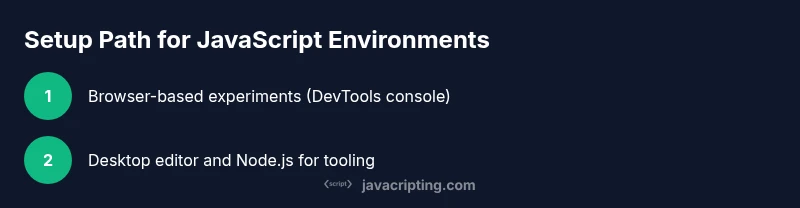
- Quick-start idea: begin with browser-based experiments for immediate results.
- Then add a local runtime (Node.js) to explore servers, tooling, and packaging.
- Finally, organize a scalable project structure that grows with your ambitions.
Browser-first experimentation: fast feedback and validation
For beginners, the browser is the friendliest place to start. You can write small snippets in the console, embed scripts in a simple HTML file, and see results instantly without any setup. This accelerates discovery and helps you learn core JavaScript concepts like variables, functions, and DOM manipulation with minimal friction. Browser environments also expose DevTools for debugging, profiling, and live editing, which makes it easier to iterate on ideas. The browser is ideal for learning syntax, basic APIs, and front-end fundamentals before introducing server-side concepts. As you grow, you’ll instinctively separate concerns: keep UI logic in the browser, while server logic moves to Node.js.
Node.js vs browser: understanding the runtime differences
Node.js runs JavaScript on the server side and provides access to the file system, network sockets, and child processes — capabilities the browser intentionally restricts. This difference matters when you start building tools, APIs, or back-end services. In contrast, the browser focuses on rendering, event handling, and user interactions. Understanding these constraints helps you choose the right tool for the task at hand and reduces wasted time chasing browser-like capabilities in Node.js, or vice versa. JavaScripting notes that many learners begin in the browser and only later introduce Node.js to handle tooling, APIs, and server tasks.
Editors and IDEs: practical options for 2026
The landscape includes lightweight editors, full-featured IDEs, and everything in between. Visual Studio Code remains popular for JavaScript due to its extensibility, built-in support for TypeScript, and a rich ecosystem of plugins (linting, formatting, debugging). Other editors like Sublime Text or WebStorm offer performance advantages or specialized toolsets. The key is to pick an editor that helps you write clean code, navigate large projects, and integrate with your runtime of choice. When evaluating options, consider: does it support JavaScript modules, has active extensions, and can it run or preview code locally? Consistency matters more than brute-force feature counts.
Setting up Node.js and version management
Node.js is the backbone for server-side JavaScript and tooling. Install the LTS version to ensure stability across your projects. If you work on multiple projects, a version manager like nvm can simplify switching Node versions. This is especially important when you encounter projects that rely on older runtimes or specific npm package versions. After installing, verify versions with node -v and npm -v to confirm a clean setup. A predictable Node environment reduces “works on my machine” issues when collaborating.
Project structure basics: folders, npm, and scripts
A practical starter project includes a clean folder layout (src for source code, tests for tests, and dist or build for outputs). Initialize npm in your project root with npm init -y to create a package.json file, which becomes the control center for scripts, dependencies, and metadata. Adding scripts like "start": "node src/index.js" and "build": "rollup -c" gives you repeatable workflows. As you scale, you’ll introduce bundlers, test runners, and CI pipelines, but a simple, well-organized structure keeps you focused on learning rather than fighting tool setup.
Essential tooling and extensions for productivity
A solid setup includes extensions that improve code quality, consistency, and speed. ESLint helps catch problems early, Prettier enforces consistent formatting, and Live Server (or similar) speeds up browser reloading during development. Consider a Git integration for version control, a test runner for JavaScript tests, and a snippets manager to reuse common patterns. Refine your toolchain gradually: start with one linter, one formatter, and one live-reload tool, then expand as your projects demand.
Your first script: a simple hello world and a quick run
Create a simple script to validate your environment: console.log('Hello, JavaScript in the real world!'); Save it as src/hello.js and run it with node src/hello.js or include it in a small index.html for browser testing. This exercise verifies your path from editor to runtime and introduces you to the flow of editing, saving, and executing code. You’ll also see how console output appears in the browser console and in the terminal, reinforcing the idea that feedback depends on your chosen environment.
Debugging fundamentals across environments
Debugging in a browser uses DevTools: set breakpoints, inspect variables, and step through code. In Node.js, you’ll rely on the built-in debugger or an editor-integrated debugger. A consistent debugging workflow across environments helps you quickly locate issues and learn how JavaScript behaves in different contexts. Pro tip: start with console.log statements for quick checks, then migrate to proper breakpoints for more complex scenarios. This builds confidence and reduces frustration when projects grow.
Modules, scope, and package.json basics
As soon as you move beyond single files, you’ll encounter JavaScript modules and package management. Learn the module system (CommonJS in Node.js vs ESM in browsers) and how to import/export code between files. Your package.json ties dependencies, scripts, and metadata together. A disciplined approach to modules keeps code maintainable and supports scalable learning as you progress from beginner to intermediate projects.
Testing, feedback loops, and quick wins
Establish a lightweight testing habit early. Start with simple unit tests for pure functions, then expand to integration tests as your projects grow. Use npm scripts to run tests, lint, and build. Quick feedback loops—code, run, test, iterate—accelerate learning and help you internalize best practices faster. A reliable workflow reduces cognitive load and keeps you focused on solving real problems.
Performance basics and optimization mindset
JavaScript performance matters as projects scale. Learn to measure with simple timing (console.time/console.timeEnd), avoid unnecessary reflows in the DOM, and use efficient array methods. Profiling tools in browser DevTools reveal bottlenecks and help you optimize loops, event handlers, and I/O operations. Building this mindset early pays off when you tackle more complex front-end or back-end tasks.
Long-term setup: from student to professional
Your final setup should be simple to maintain yet powerful enough to scale. Start with browser-based learning and a lightweight editor, then incorporate Node.js for tooling and servers as you grow. Use version control, modular code organization, and repeatable scripts to automate common tasks. The journey from beginner to professional is gradual; keep iterating your setup as new needs arise and you’ll stay productive across projects.
Tools & Materials
- Code editor (VS Code recommended)(Install from the official site; enable JavaScript/TypeScript support)
- Node.js runtime(Choose the LTS version; includes npm)
- Web browser with Developer Tools(Chrome/Edge/Firefox; ensure DevTools access)
- Terminal or Command Prompt(For commands like npm, node, and scripts)
- Browser live-reload extension (optional)(Helpful for rapid browser refresh during learning)
- Git (optional but recommended)(Version control to track changes)
- Sample project skeleton (starter files)(index.html, src/index.js, package.json)
Steps
Estimated time: 60-90 minutes
- 1
Decide your primary runtime
Evaluate your goal: if you mainly learn language syntax and browser APIs, browser-based experiments suffice. If you plan to build servers or tooling, plan to incorporate Node.js early to practice module syntax and npm workflows.
Tip: Write down three example tasks and map them to either browser or Node.js environments. - 2
Install a code editor
Download and install your chosen editor. Open the editor and install a JavaScript/TypeScript extension pack to enhance syntax highlighting, IntelliSense, and linting.
Tip: Enable auto-save to keep your workflow smooth and minimize lost work. - 3
Install Node.js
Download the LTS version from the official Node.js site and install it. Open a terminal and verify node -v and npm -v to confirm a clean setup.
Tip: If you manage multiple projects, consider a version manager like nvm to switch versions easily. - 4
Create a project folder and initialize npm
Create a dedicated project folder. Run npm init -y to generate a package.json that will manage scripts and dependencies as you grow.
Tip: Keep a minimal package.json and add fields only as needed to avoid clutter. - 5
Add starter files and a simple script
Create index.html and src/index.js with a basic console.log. This validates your path from editor to browser or Node runtime.
Tip: Use a consistent file naming convention (e.g., src/ for code) from the start. - 6
Install essential tooling
Install ESLint and Prettier, and configure a basic npm script for linting. This establishes good habits early and reduces common mistakes.
Tip: Run linting and formatting as a pre-commit step to enforce quality. - 7
Run and test locally
Open index.html in a browser or run node src/index.js to see your output. Use DevTools or terminal output to verify behavior.
Tip: Don’t skip the simple test—it's your first feedback loop. - 8
Experiment with modules
Refactor code into modules: export functions in separate files and import them where needed. This introduces you to modern JavaScript patterns.
Tip: Practice with both CommonJS and ES Modules to understand differences. - 9
Add a test and a script
Create a tiny test file and a test script that runs with npm test. This builds confidence in automated checks.
Tip: Start small; tests should be deterministic and fast. - 10
Optimize your feedback loop
Set up a quick cycle: write, save, run, observe, adjust. Use live-reload for browser testing to shorten iteration time.
Tip: Automate repetitive tasks with npm scripts and watch commands. - 11
Document your setup
Create a README outlining your environment, commands, and folder structure. Documentation reduces onboarding time for future projects.
Tip: Keep it concise and version-controlled. - 12
Plan for growth
Outline next steps: testing, bundling, and deployment strategies. Your plan helps you scale projects without losing focus.
Tip: Review and adjust every few weeks as you level up.
Questions & Answers
Do I need Node.js to write JavaScript today?
No. You can write and run JavaScript in the browser, but Node.js is essential for server-side tasks, tooling, and running code outside the browser. Start in the browser for learning, then add Node.js as your needs grow.
You can start in the browser, and then add Node.js as your projects get more complex.
Which editor is best for beginners?
Visual Studio Code is widely recommended for beginners due to its helpful extensions, integrated terminal, and strong JavaScript/TypeScript support. The right editor should feel comfortable and speed up your workflow.
VS Code is a common starting point because of its balance of features and simplicity.
Can I learn everything in one environment or should I mix?
Mixing environments is normal and beneficial. Start with browser-based learning for quick feedback, then layer in Node.js for tooling and server-side tasks as your projects demand.
It’s fine to start in the browser and add Node.js later as your needs grow.
How do I run JavaScript outside the browser?
Use Node.js. Save your file with a .js extension and run it via the node command in your terminal to execute server-side code and test tooling scripts.
Run your script with node yourfile.js in the terminal.
What is the difference between browser and Node.js runtimes?
Browsers execute JavaScript with a focus on UI, events, and DOM. Node.js runs on servers and local machines, offering file I/O, network access, and shell tools. Each environment provides distinct APIs and capabilities.
Browsers handle UI and DOM; Node.js handles server-side tasks and tooling.
Should I learn TypeScript early on?
TypeScript adds static typing and can improve maintainability, but it’s optional for beginners. You can start with JavaScript and introduce TypeScript when you’re ready to manage larger codebases.
You can wait on TypeScript and focus on JavaScript fundamentals first.
Watch Video
What to Remember
- Choose a browser-first path for rapid feedback.
- Add Node.js to your toolkit for server-side and tooling work.
- Build a modular, documented project structure early.
- Incorporate ESLint/Prettier to enforce code quality.
- Establish fast feedback loops with simple tests and live reload.