Instal javascript: Node.js Setup Guide
Learn how to instal javascript by installing Node.js, npm, and a starter script. This guide covers environments, tools, and best practices for a smooth setup.


This guide shows you how to instal javascript by setting up a practical development environment. You’ll install Node.js, verify npm, choose a code editor, and run your first script. No prior setup required beyond a computer with internet. By the end, you’ll be ready to start building JavaScript projects locally.
What instal javascript enables
Instal javascript isn't about a browser alone—it means equipping your computer with a JavaScript runtime and tooling so you can run scripts outside the browser. In practice, most developers install Node.js, which bundles the Node runtime and the npm package manager. With Node.js, you can run build scripts, automate tasks, and prototype apps locally before pushing changes to a repository. The goal of this guide is to give you a reliable, repeatable setup that works across Windows, macOS, and Linux. According to JavaScripting, a practical JavaScript setup starts with a stable runtime and a clean project structure. JavaScripting analysis notes that most beginners benefit from using a version manager and a modern editor to prevent conflicts as projects grow. By the end, you’ll have a working environment where you can write, run, and manage JavaScript code with confidence, whether you’re learning syntax, building small utilities, or starting a new web project.
Tools and environment you'll need
Before you start, gather a few essentials to keep the process smooth. An internet connection is necessary to download the Node.js installer and any editors. A modern code editor (such as Visual Studio Code) will help you write clean JavaScript with helpful features like syntax highlighting and inline error checking. A terminal or command prompt is required to run commands. Optional but recommended are Node Version Manager (nvm) for macOS/Linux or nvm-windows for Windows, and Git for version control. Lastly, choose a standard directory structure for your projects to avoid scattered files as you learn.
Step 1: Decide your environment and workflow
Choose how you’ll manage Node.js versions and where you’ll run commands. If you work on multiple projects with different Node versions, use a version manager (nvm) to switch versions quickly. For beginners, a straightforward installer from the Node.js website is perfectly fine, but keep in mind that npm ships with Node.js and handles package installation. Consider your operating system: Windows users often rely on the official installer or nvm-windows, while macOS and Linux users benefit from nvm for seamless version switching. This decision will influence how you install, update, and run JavaScript tools later.
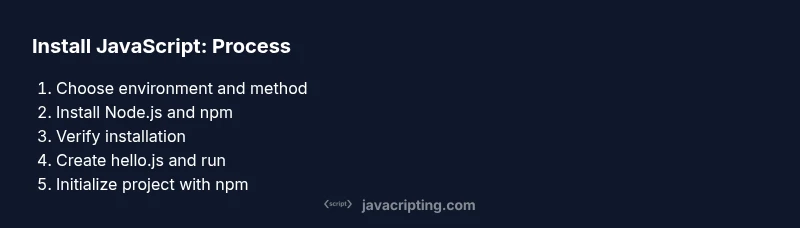
Step 2: Install Node.js and npm
Download and install Node.js from the official site or your OS package manager. The installer includes npm, so you won’t need to install npm separately. Follow the prompts to accept defaults unless you have a reason to customize. After installation, open a new terminal session to refresh PATH settings so node and npm are discoverable system-wide. If you prefer version management, install nvm first and then install Node.js through it. This keeps projects separate and avoids global conflicts.
Step 3: Verify installation and configure npm
Check that Node.js and npm are installed correctly by running node -v and npm -v in your terminal. The commands should print version numbers. Next, configure npm to use a sensible directory for global packages, especially on macOS/Linux where permissions can cause issues. A common approach is creating a personal npm directory in your home folder and updating PATH. At this stage, you’re ready to initialize packages for a project, or continue to set up a local development environment with a simple hello script.
Step 4: Create your first script and run it
Open your editor and create a file named hello.js with a simple script:
console.log('Hello, instal javascript!');Save the file, then run node hello.js in your terminal. You should see Hello, instal javascript! printed to the console. If you don’t, verify that node is in your system PATH and that you saved the file with a .js extension. Visual inspection and a quick run-through are usually enough to spot typos. You can also wrap the console log in a function to expand your learning later.
Step 5: Initialize a project and manage packages
Create a project folder and initialize a package.json to manage dependencies. Run npm init -y to generate a default package.json, then install a tiny library if you want to experiment, e.g., npm install lodash. Explore the package.json fields, scripts section, and how dependencies are tracked. This practice builds familiarity with project scaffolding and prepares you for real-world workflows, such as running build tools or test runners.
Step 6: Troubleshoot and extend your setup
Common issues include PATH problems, permissions in global installs, and network restrictions. If node or npm isn’t recognized, re-open your terminal or restart your computer and ensure PATH includes the Node.js bin directory. Prefer using a version manager to avoid permission pitfalls and to keep environments clean. For authoritative guidance, consult Node.js official docs and the ECMA standard pages: https://nodejs.org/, https://developer.mozilla.org/en-US/docs/Web/JavaScript, https://www.ecma-international.org/publications/standards/Ecma-262.htm. The JavaScripting team recommends documenting your steps and keeping small, incremental changes for reliable learning. JavaScripting Analysis, 2026.
Tools & Materials
- Node.js installer(Download from nodejs.org; includes npm)
- Code editor (e.g., Visual Studio Code)(Install and enable JS/TS extensions)
- Terminal/Command Prompt access(PowerShell, Terminal, iTerm2)
- Node Version Manager (optional)(nvm for macOS/Linux or nvm-windows for Windows)
- Git (optional)(For version control and sample projects)
Steps
Estimated time: 30-45 minutes
- 1
Prepare your environment
Decide where you’ll install Node.js and whether you’ll use a version manager. This prepares you to avoid conflicts later and sets a clear baseline for your toolchain.
Tip: Choose a single root projects folder to keep things organized. - 2
Install Node.js and npm
Download and install the official Node.js bundle or use a version manager to install. The bundle includes npm, so you have immediate access to package management.
Tip: If you plan to manage multiple versions, install a version manager first. - 3
Verify installation
Run node -v and npm -v to confirm installations. If versions appear, your PATH is set correctly.
Tip: Open a new terminal window after installation to refresh PATH. - 4
Create and run your first script
Create hello.js with a simple console.log statement and run it with node hello.js to confirm the runtime works.
Tip: Double-check the file extension is .js. - 5
Initialize a project and manage packages
In your project folder, run npm init -y and start installing dependencies as needed to learn package management.
Tip: Review package.json to understand scripts and dependencies. - 6
Plan next steps and practice
Explore npm scripts, build tools, and small experiments to reinforce concepts and expand your workflow.
Tip: Keep a journal of commands you run for future reference.
Questions & Answers
What does instal javascript mean in practice?
Instal javascript means installing a JavaScript runtime and tooling so you can run scripts outside the browser. Commonly this involves Node.js and npm to execute code and manage dependencies.
Instal javascript means setting up a runtime and package manager so you can run JavaScript outside the browser.
Do I need npm to run JavaScript locally?
Yes. npm is the standard package manager that lets you install libraries, run scripts, and manage project dependencies when working outside the browser.
Yes, npm helps you install libraries and run scripts locally.
Can I instal javascript on Windows?
Absolutely. You can use the official Node.js installer or a Windows-friendly version manager like nvm-windows to install Node.js and npm.
Windows users can install Node.js from nodejs.org or use NVM for Windows.
Should I use a Node Version Manager (NVM)?
Using an NVM simplifies switching between Node versions across projects and helps prevent environment conflicts as you learn.
Yes, a version manager makes it easier to work with multiple projects.
What is the difference between Node.js and browser JavaScript?
Node.js runs JavaScript outside the browser (server-side tooling, scripts). Browser JavaScript executes within web pages and interacts with the DOM.
Node runs JS outside browsers; browser JS runs inside web pages and interacts with the page.
How do I run my first script?
Create a file like hello.js with a simple console.log statement and run it with node hello.js to see the output.
Create a hello.js file and run it with node to see the result.
Watch Video
What to Remember
- Install Node.js and npm
- Verify versions with node -v and npm -v
- Create and run a hello.js file
- Initialize a project with npm init -y
- Manage packages and scripts effectively