How to Check JavaScript Errors in Your Browser
Learn to check and diagnose JavaScript errors directly in your browser. This practical guide covers Console, Network, and Debugger tools across Chrome, Firefox, Safari, and Edge with step-by-step workflows.


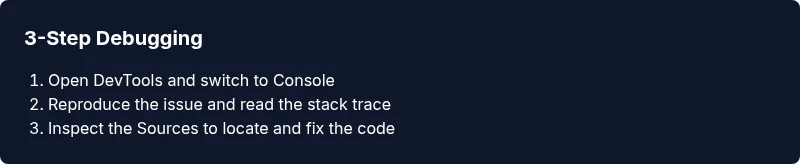
Open DevTools, reproduce the issue, and read the stack trace in Console. Then switch to Sources to inspect variables and set breakpoints. See our full step-by-step guide for browser-specific tips.
Overview of browser errors
If you're curious how to check javascript error in browser, you’re in the right place. JavaScript errors come in several forms: syntax errors that stop code from running, runtime errors that occur during execution, and promise rejections that fail asynchronous tasks. Browsers surface these errors through the Developer Tools, with the Console being the first stop for many developers. By understanding error types and their typical causes—typos, missing files, network failures, or faulty logic—you can triage effectively. According to JavaScripting, the best starting point is the Console panel for immediate error messages. This foundation helps you separate the urgent failures from non-critical warnings and guides your next debugging steps. In real projects, errors often cascade from a missing script, incorrect load order, or environment differences. The aim here is to give you a repeatable workflow you can apply to almost any project, from simple scripts to complex front-end apps.
Accessing DevTools across browsers
All major browsers provide robust DevTools that mirror each other in purpose if not in exact layout. In Chrome and Chromium-based browsers, press Ctrl+Shift+I or Cmd+Option+I to open DevTools. Firefox users can press F12 or Ctrl+Shift+I; in Safari, enable the Develop menu in Preferences and then choose Show Web Inspector. Edge follows Chrome’s shortcuts closely. The key panels you’ll use are Console and Sources (Debugger). For a consistent workflow, open Console first, reproduce the issue, and then switch to Sources to jump to the relevant code. JavaScripting analysis shows that practitioners who standardize this sequence save time and reduce context-switching during debugging. If you’re working with transformed code (compiled or minified), ensure source maps are available so you can view the original source in the debugger.
Using the Console panel effectively
The Console panel is where most JavaScript errors appear first. Look for messages labeled Error, which usually include a stack trace, filename, and line number. Use the filter controls to show only Errors or to hide non-error logs. In addition to errors, warnings can alert you to deprecated APIs or potential pitfalls that may become errors later. You can click a line in the stack trace to jump to the corresponding source in the Sources panel, which is a fast way to navigate from an error to its origin. If you see “Uncaught TypeError” or “ReferenceError,” write down the failing variable and the surrounding code context. Console logging (console.log) is helpful for quick checks, but avoid leaving verbose logs in production. Keep a concise log of steps and observed outputs to accelerate future triage.
Reading stack traces and line numbers
A stack trace traces the sequence of function calls that led to the error. Start at the top to identify where execution began failing, then drill down into the surrounding context. If your code is bundled, the lines may refer to the generated file; enable source maps so you can map back to the original source. Clicking a frame in the trace opens the corresponding file in the debugger. If the trace jumps into library code you can’t edit, you can temporarily wrap calls or use mocks to isolate the problem. The key is to read the trace with attention to the first offending frame and the state of relevant variables at that moment.
Debugging with the Sources/Debugger
The Sources/Debugger panel gives you hands-on control to pause execution, inspect variables, and test fixes on the fly. Set breakpoints on specific lines or use conditional breakpoints that trigger only when certain conditions are met. Enable event listener breakpoints to catch errors inside event handlers. Turn on “Pause on exceptions” to stop when an exception is thrown, even if it’s later caught, helping you locate the root cause. For async code, use async call stacks to trace across awaits. If you’re debugging minified code, make sure sourcemaps are loaded so you can debug in terms of your original sources rather than the minified output.
Common errors and how to fix
ReferenceError happens when a variable or function is not defined; ensure the name is correct and that the script containing it loads before use. TypeError signals a value was not the expected type; verify variable types and function arguments. SyntaxError means your code isn’t valid JavaScript; run a quick syntax check and consider using a linter to catch mistakes early. Network-related errors (like 404 for a script or API) point to incorrect URLs or unreachable servers. Unhandled promise rejections can disrupt flows; add catch handlers or use try/catch with async/await. In practice, reproduce the issue, capture the exact message, and trace it back to the precise code path. Use source maps and proper module loading order to reduce future occurrences.
Practical tips and best practices
- Reproduce the issue with a minimal, repeatable test case.
- Enable source maps in development to map compiled code back to the original source.
- Keep the Console focused by filtering to Errors during triage.
- Document steps and results to speed up future debugging sessions.
- Use the Network panel to identify failing API calls or CORS issues.
- Prefer breakpoints over heavy console logging for complex codebases.
- Regularly review linting reports to catch issues early and prevent runtime errors.
- Test across multiple browsers and devices to catch environment-specific issues. The JavaScripting team recommends establishing a standard debugging workflow across teams to improve consistency and speed.
Final thoughts and best practices for long-term reliability
Develop a predictable debugging routine: reproduce, inspect, breakpoint, verify, and confirm fixes. Build a habit of checking Console messages early in development and after deploying new features. By integrating these practices into your daily workflow, you’ll reduce debugging time, gain greater confidence in your code, and ship more robust JavaScript applications.
Tools & Materials
- Modern web browser with built-in DevTools(Chrome, Firefox, Edge, or Safari; ensure DevTools are up to date)
- Test page or local HTML file(A page that reproduces the error or a minimal repo)
- Text editor or IDE(For editing code and understanding source maps)
- Documentation access(Browser docs or MDN references for API details)
- Screenshot or screen recording tool(Optional for documenting the debugging process)
Steps
Estimated time: about 20-30 minutes
- 1
Open DevTools
Launch your preferred browser and open DevTools. Use the shortcut (Chrome/Edge: Ctrl+Shift+I or Cmd+Option+I on Mac) to quickly access the tools. This gives you access to Console and Sources where most errors are surfaced.
Tip: Familiarize yourself with the Console and Sources panels before reproducing the issue. - 2
Reproduce the error
Reload or perform the action that triggers the error. Note the exact sequence, including any user interactions. This helps ensure you capture the same conditions when debugging.
Tip: Disable cache during reproduction to avoid stale resources affecting results. - 3
Read the console error
Examine the error message, type, and stack trace. Identify the file and line number indicated by the trace. This is usually your first clue about where things went wrong.
Tip: Click the stack frame to jump to the corresponding code in the Sources panel. - 4
Inspect the source
Switch to the Sources (Debugger) tab. Open the file and navigate to the indicated line. Check nearby code, variable values, and function calls that influence the error.
Tip: Set a breakpoint on the suspect line to pause execution and inspect runtime state. - 5
Use breakpoints effectively
Add conditional breakpoints where a variable equals a specific value. Breakpoints help isolate the exact scenario causing the error without stepping through unrelated code.
Tip: Combine with console logs for quick cross-checks without polluting production logs. - 6
Check related network activity
Open the Network panel and reproduce the issue to verify API calls, response codes, and payloads. Network problems can masquerade as JavaScript failures.
Tip: Filter by XHR/fetch to focus on API traffic. - 7
Validate fixes and re-test
Apply code fixes, reload, and verify the error is resolved. Clear related console messages and confirm no new errors are introduced.
Tip: Keep your fix localized and re-check with the minimal reproduction when possible.
Questions & Answers
Where do I see JavaScript errors in the browser?
Most errors appear in the browser's Developer Tools Console. The console shows messages labeled as Error with a stack trace and a link to the source file and line number.
Open DevTools and switch to the Console to view the error message and stack trace.
Why am I not seeing errors even though the page is failing?
Errors can be filtered out. Check that the Console is not filtering out messages, and ensure you are reproducing the issue under the right conditions.
Make sure the console is set to show Errors and that you’re reproducing the failure.
How can I map errors to my original source when using bundles?
Enable source maps and load them in your DevTools. Click the stack frame to jump to the original source; this makes it much easier to understand the failure in your own code.
Use source maps to see your actual source code behind compiled bundles.
What is an uncaught promise rejection and how should I handle it?
An uncaught rejection occurs when a promise fails and isn’t handled. Attach a catch handler, or use try/catch with async/await to prevent unhandled rejections.
Handle promise rejections with catch or top-level error handling.
How can I debug minified code effectively?
Utilize source maps to map back to the original source, then place breakpoints in the unminified code. This keeps debugging intuitive and accurate.
Turn on sourcemaps so you can debug the original code.
Can I debug JavaScript on mobile devices the same way?
Yes. Use remote debugging or device-specific developer tools to attach to the mobile browser and reproduce the error on the actual device.
Remote debugging lets you inspect console and breakpoints on mobile.
Watch Video
What to Remember
- Open DevTools Console to see errors
- Read stack traces to locate the source
- Use Sources to set breakpoints and inspect state
- Check Network for API-related issues
- Map minified code with source maps for clarity