How to Download JavaScript: A Complete 2026 Guide
Learn how to download JavaScript runtime environments safely, with Node.js setup, browser-based execution, verification steps, and common troubleshooting tips for aspiring developers.


To download JavaScript, you don’t fetch the language itself. You install a runtime like Node.js to run JS outside a browser. This guide covers safe, official sources, how to install the runtime, verify the setup, and run a first script. It also explains browser execution and essential tooling for modern JavaScript development.
Understanding how JavaScript runs in the browser vs runtime
JavaScript is a language, not a downloadable product. Web browsers come with built-in JavaScript engines (for example, V8 in Chrome, SpiderMonkey in Firefox, and JavaScriptCore in Safari) that execute JS code directly within web pages. If you want to run JavaScript outside a browser—for automation, tooling, or servers—you install a runtime. According to JavaScripting, most newcomers assume JavaScript itself is something you download; in reality you install a runtime and then write code that the engine executes. This distinction guides what you install, how you run scripts, and which tools you’ll use for development.
Why you might want a local JavaScript runtime
A local runtime enables you to execute JavaScript on your machine outside the browser, which is essential for building command-line tools, automating tasks, and running server-side code. It also gives you access to package managers like npm, which simplify sharing libraries and tooling. For beginners, having a runtime helps you test ideas quickly, run small experiments, and learn JavaScript fundamentals with real feedback from the command line. The JavaScripting team emphasizes starting with a stable LTS release to maximize compatibility and long-term support.
Browser vs Node.js: Understanding differences
Browser-based JavaScript is tightly coupled with the DOM, the browser’s APIs, and user interactions. Node.js, by contrast, provides server-side capabilities like filesystem access, network requests, and package management but lacks native DOM support. Knowing this helps you decide when to rely on browser JavaScript (for front-end work) versus Node.js (for back-end tooling, servers, or automation). Both environments share the core language, but their APIs and runtimes are distinct enough to warrant different setup paths.
Prerequisites and safety considerations
Before you begin, ensure you have a stable internet connection and administrator access on your computer. Always download software from official sources to avoid tampered installers or malware. Keep your system updated, and consider enabling firewall rules that allow Node.js related traffic only as needed. If you plan to manage multiple Node.js versions, be ready to use a version manager, which makes switching between releases safer and easier.
How to download Node.js from the official site
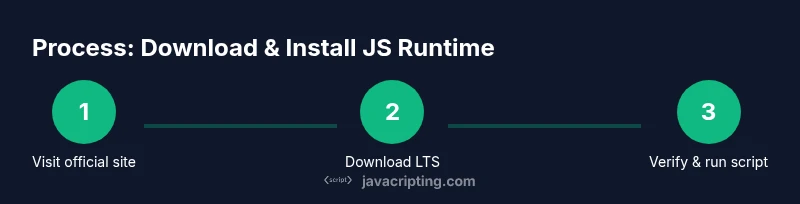
The primary way most developers obtain a JavaScript runtime is by downloading Node.js from the official site at nodejs.org. Choose the LTS (Long-Term Support) version for maximum stability and compatibility with libraries you’ll use. The site detects your operating system and offers the correct installer. After downloading, run the installer and follow the prompts. Once installed, you’ll typically get both the node executable and npm, the Node package manager, included in the setup.
Windows installation steps
Run the Node.js installer you downloaded from nodejs.org and follow the on-screen prompts. Make sure to select the option that adds Node.js to your PATH so you can run commands from any terminal. Complete the installer, then open Command Prompt and type node -v and npm -v to confirm both are installed. If you see version numbers, you’re ready to start experimenting with JavaScript scripts on Windows.
macOS and Linux installation options (including NVM)
On macOS, you can install Node.js via the official package or use a Node version manager (NVM) to simplify switching between versions. On Linux, you can install from your distribution’s package manager or again use NVM for flexibility. For multi-version setups, install NVM first, then install Node.js via NVM. This approach keeps your development environment tidy and easy to update.
Verifying installation and starting a first script
Open a terminal and run node -v and npm -v to verify the installation. Create a simple file named hello.js with console.log('Hello, JavaScript!'); and run node hello.js to see the output. If you see the greeting, your runtime is working correctly. From here, you can start building scripts, automate tasks, or set up a project with a package.json file to manage dependencies.
Common issues and troubleshooting
If node or npm isn’t recognized, double-check your PATH settings and reinstall if necessary. If installation fails on Linux, ensure your package manager repositories are up to date. On macOS, permission errors can appear; running installation commands with proper privileges or using a version manager can help. Finally, always validate installations by executing basic commands and a simple script to confirm the runtime behaves as expected.
Next steps and learning resources
Now that you have a JavaScript runtime installed, explore writing small scripts, experiment with npm-installed packages, and learn about module systems (CommonJS vs ESM). Consider setting up a small project structure with index.js, package.json, and a few dependencies to practice best practices. You can also broaden your knowledge by following official tutorials and documentation from the Node.js project and popular JavaScript resources.
Tools & Materials
- Official Node.js installer(Download from nodejs.org; choose the LTS version for stability; available for Windows, macOS, and Linux)
- Administrative privileges(Needed to install system-wide software and modify PATH)
- A modern code editor(Examples: Visual Studio Code, Sublime Text, or Atom)
- Terminal or Command Prompt(Used to run node, npm, and sample scripts)
- Node Version Manager (optional for macOS/Linux)(Helpful for managing multiple Node.js versions)
Steps
Estimated time: 30-60 minutes
- 1
Decide on runtime
Determine whether you need browser-based JavaScript or a local runtime (Node.js) for server-side or tooling tasks. This choice affects installation steps and tooling.
Tip: If unsure, start with Node.js to cover most modern development needs. - 2
Open the official Node.js site
Navigate to nodejs.org to begin the download process. The site detects your OS and suggests the correct installer.
Tip: Always use the official site to avoid compromised installers. - 3
Download the LTS installer
Choose the Long-Term Support version for reliability and compatibility with libraries you’ll use.
Tip: LTS versions are better for beginners and long-term projects. - 4
Run the installer
Execute the downloaded file and follow the prompts. Ensure the option to add Node.js to PATH is enabled.
Tip: If prompted, allow the installer to help configure your environment. - 5
Open a terminal and verify
Type node -v and npm -v to confirm both were installed correctly.
Tip: If commands aren’t found, revisit PATH settings or restart the terminal. - 6
Install a simple script
Create hello.js with a simple console.log and run it with node hello.js.
Tip: Keeping tests small helps you confirm the runtime behaves as expected. - 7
Consider using NVM (optional)
If you plan to manage multiple Node.js versions, install NVM and use it to install other runtimes.
Tip: NVM keeps projects isolated by version, reducing conflicts. - 8
Set up a project
Create a project folder, initialize with npm init, and add a few dependencies to explore package management.
Tip: Document dependencies in package.json for reproducible environments. - 9
Explore package installation
Install a small library with npm install your-package and require it in a test script.
Tip: Prefer scoped packages from reputable sources and review licenses. - 10
Practice and expand
Build a command-line tool or a small script to automate a real task and iterate on it.
Tip: Regular practice consolidates understanding of runtime behavior. - 11
Document and version control
Add README notes and commit your changes to a version control system like Git.
Tip: Version your environment alongside your code. - 12
Maintain security
Keep Node.js and npm updated, review dependencies for security advisories, and avoid running untrusted code.
Tip: Enable automatic security checks where possible.
Questions & Answers
Do I actually download JavaScript, or just a runtime?
JavaScript is executed by a runtime, not downloaded as a standalone program. You install a runtime like Node.js to run server-side JS, or use a browser to run client-side code.
JavaScript runs in a runtime, not as a separate download. Install Node.js for server-side use, or run in your browser for client-side work.
What is the difference between Node.js and browser JavaScript?
Node.js provides server-side capabilities and npm for packages, while browser JS runs with DOM APIs within a page. They share the same language, but their environments and APIs differ.
Node.js runs JS on the server with packages; browsers run JS in web pages with DOM access.
Where can I download Node.js safely?
Always download from the official Node.js website, nodejs.org. Choose the LTS version for best stability and compatibility with most libraries.
Get Node.js from the official site and pick the LTS version for stability.
Do I need npm, and what is it for?
npm ships with Node.js and lets you install reusable code packages. It’s essential for managing dependencies in JavaScript projects.
Yes. npm helps you install and manage packages for your JavaScript projects.
Can I install Node.js on Windows, macOS, and Linux?
Yes. Node.js is available for all major desktop platforms. The installation steps vary slightly by OS, but the general process is consistent.
Node.js runs on Windows, macOS, and Linux with similar setup steps.
How do I update Node.js later?
Use your chosen installer or a version manager like NVM to install a newer release. Keep npm updated with npm install -g npm when needed.
Update Node.js via the installer or NVM, and keep npm updated as well.
Watch Video
What to Remember
- Download from official sources to stay safe.
- Node.js includes npm for package management.
- Browser JS runs in engines; Node.js runs outside the browser.
- Verify installation with node -v and npm -v, then start small scripts.